How To Update Your Account Settings On KarryBiz

Maybe you recently changed your phone number or you created a more professional email address. Or maybe your business has rebranded and your business name needs updating. Or maybe you have had your account for a while and it is simply time to update your profile photo to something more professional.
Whatever the reason maybe, keeping your KarryBiz account information accurate and up to date is not only just good but a fundamental part of running a trustworthy, professional online business.
Outdated contact details mean customers and the platform can’t reach you when it matters. An old phone number means missed order notifications. A wrong email means lost invoices and payment confirmations. An outdated business name means inconsistency across your brand.
The good news is that updating your account settings on KarryBiz takes less than two minutes and everything is managed from one clean, easy-to-use Account Settings page right inside the app.
In this guide, we will walk you through every field on the KarryBiz Account Settings page exactly as it appears in the app — so you always know how to keep your account sharp, accurate, and professional.
What You Can Update in Account Settings
Looking at the KarryBiz Account Settings page, here is everything you can edit and manage:
• Profile Photo: The image that represents your account across the platform.
• Full Name: Your registered name on KarryBiz.
• Phone Number: Your primary contact number for the account.
• Email Address: Your registered email for notifications and login.
• Business Name: The name of your business on the platform.
• Password: Your account login password.
Step-by-Step: How to Update Your Account Settings
Step 1: Log In to Your KarryBiz Account
• Open the KarryBiz app on your smartphone and log in using your registered email address and password.
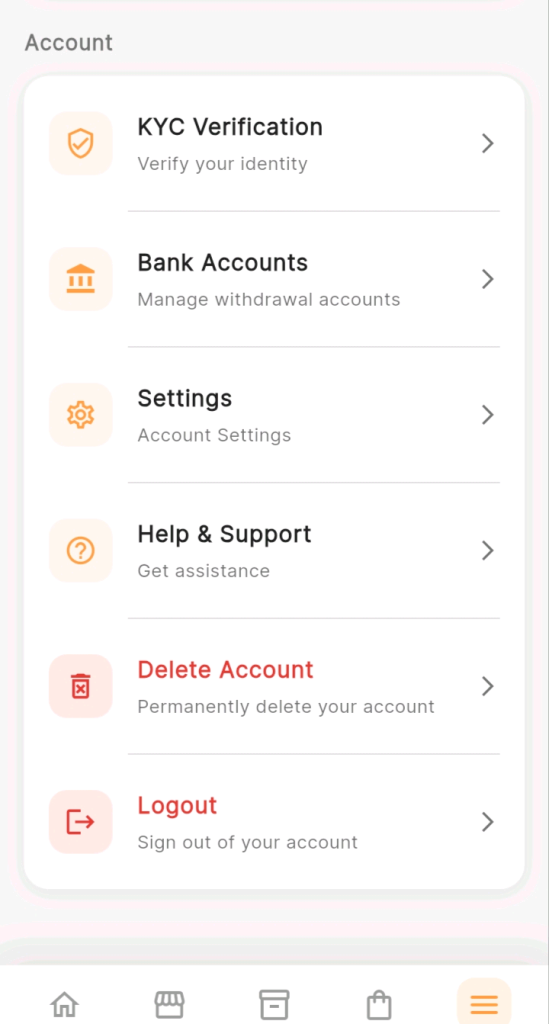
• Once logged in, tap “More” from the bottom navigation bar, then tap “Settings” under the Account section.
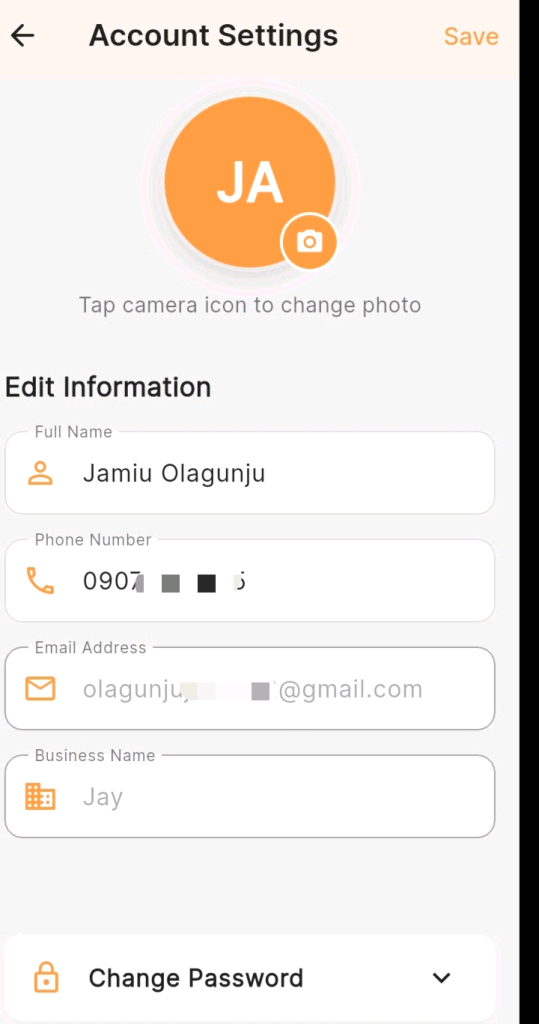
• The Account Settings page will open, displaying your current profile information ready for editing.
Step 2: Update Your Profile Photo
At the top of the Account Settings page, you will see your current profile avatar displaying your initials in an orange circle if no photo has been uploaded yet.
Below the avatar, KarryBiz instructs:
“Tap camera icon to change photo.”
To update your profile photo:
• Tap the camera icon on the bottom right of the avatar circle.
• Your phone’s options will appear — choose “Take Photo” or “Choose from Gallery”.
• Select or take your photo.
• Crop and adjust as needed.
• Confirm the selection.
Step 3: Edit Your Full Name
The first field under “Edit Information” is your Full Name.
Tap the Full Name field to activate it for editing. Clear the existing name and type your updated name.
Step 4: Update Your Phone Number
The second field is your Phone Number — currently displaying your registered contact number.
Tap the field, clear the existing number, and enter your new phone number.
Step 5: Update Your Email Address
The third field is your Email Address — your registered email for KarryBiz notifications, invoices, and account login.
Tap the field and update it to your new or preferred email address.
Step 6: Update Your Business Name
The fourth field is your Business Name — displayed with a building/business icon.
Tap the field and update it to your current business name.
Step 7: Change Your Password
At the bottom of the Account Settings page, you will see a “Change Password” section with a dropdown icon next to it.
Tap “Change Password” to expand the password change form.
You will be prompted to enter:
• Current Password: Your existing password for verification.
• New Password: Your desired new password.
• Confirm New Password: Re-enter the new password to confirm it matches.
Step 8: Save Your Changes
After updating any fields on the Account Settings page, tap the “Save” button in the top right corner of the screen.
KarryBiz will process your updates and confirm that your account information has been successfully saved.
Final Thoughts
Your KarryBiz account settings are the foundation of your entire presence on the platform. Every interaction: invoice, withdrawal, notification, customer communication — flows through the details stored in your account settings. Keeping them accurate is not optional but essential.
It takes less than five minutes to review and update your settings. But the consequences of outdated information are missed notifications, failed withdrawals, login lockouts, and brand inconsistency. And they can cost you far more than five minutes to fix.
So make it a habit to always review your settings regularly. Update them immediately whenever something changes.