How To Customize Your Store Appearance on KarryBiz

Creating an online store is the first step toward selling online, but how your store looks plays a huge role in whether visitors trust your business and decide to buy from you. In e-commerce, customers often judge a brand within seconds of landing on its website. A clean, well-designed store instantly communicates professionalism, while a poorly organized one can drive potential buyers away.
This is why customizing your store appearance on KarryBiz is so important. Your store design helps communicate your brand identity, highlight your products, and create a smooth shopping experience for customers.
One of the advantages of using KarryBiz is that you do not need design skills or coding knowledge to create a professional-looking store. The platform provides simple customization tools that allow you to personalize your store’s layout, branding, and visual elements directly from your dashboard.
In this guide, we will walk you through how to customize your store appearance on KarryBiz so your online store looks attractive, professional, and ready to convert visitors into customers.
Why Store Appearance Matters
Let us be honest — people judge books by their covers, and they judge online stores by how they look.
Before diving into the steps, it is important to understand why store customization is essential for your online business.
• Builds Brand Identity:
Your store appearance represents your brand. Elements such as your logo, colors, and layout help customers recognize and remember your business.
• Creates Customer Trust:
A well-designed store makes customers feel more confident about purchasing from you. Professional visuals signal that your business is legitimate and reliable.
• Improves Shopping Experience:
Good design helps customers easily navigate your store, find products quickly, and complete their purchases without confusion.
What You Will Need Before You Start
To get the best results when customizing your store, have these ready:
• Your business logo (PNG format with transparent background works best).
• Your brand colors (the hex codes if you know them).
• A clear store description that tells customers what you sell.
• High-quality product photos (more on this later).
Pro Tips: Don’t have a logo yet? You can create one for free using Canva (canva.com). It takes less than 10 minutes and the results look surprisingly professional. You can even get something more brilliant when you connect your Canva to chatgpt. This enable you to create a brilliant logo by entering a few lines of prompt, you can further edit on Canva to arrive at something more decent.
Step-by-step Process To Customize Your Store’s Appearance
Step 1: Log In and Navigate to Your Store Settings
Open the KarryBiz app or visit karrybiz.com and log in to your account.
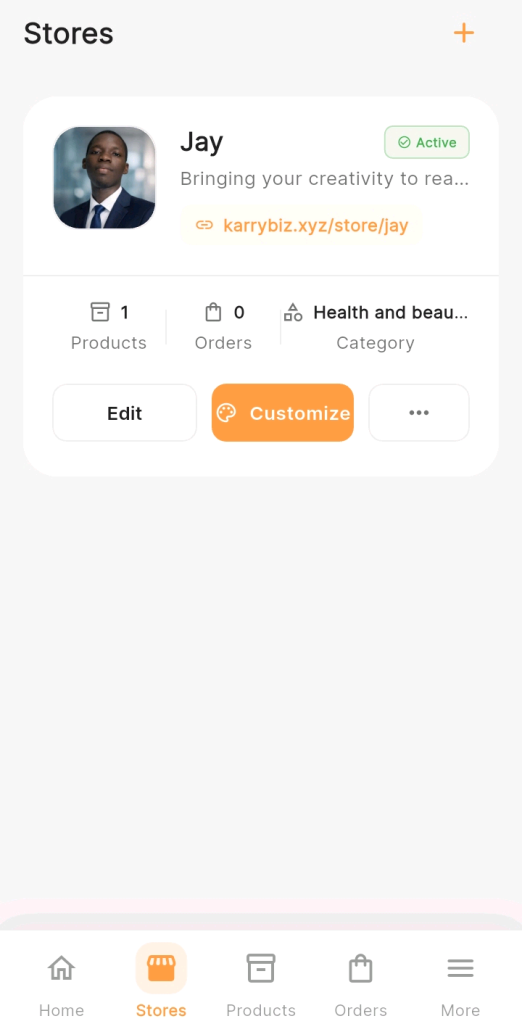
From the bottom navigation bar, tap “Stores.” Select the store you want to customize and tap “Edit Store” or “customize.”
This opens your store customization panel where all the magic happens.
Step 2: Upload Your Store Logo
Your logo is the face of your brand. It appears at the top of your store, on invoices, and anywhere your store is represented.
To upload your logo:
• Tap “Store Logo” or the logo placeholder icon.
• Select “Upload Image” from your phone gallery or device.
• Crop and position the logo as needed.
• Tap “Save.”
Best practices for your store logo:
• Use a square or circular format for best display.
• Keep the background transparent (PNG format).
• Make sure the logo is clear and readable even at small sizes.
• Avoid overly complex designs — simple logos are more memorable.
Pro tip: If your logo looks blurry after uploading, use a higher resolution version. The recommended size is at least 500 x 500 pixels.
Step 3: Write a Compelling Store Description
Your store description appears on your storefront and tells customers exactly what you sell and why they should shop with you.
A great store description:
• Is short and specific — 2 to 4 sentences maximum.
• Mentions what you sell clearly.
• Highlights a key benefit — fast delivery, affordable prices, quality guarantee.
• Has a welcoming tone — write like a human, not a robot.
Example of a weak store description: “We sell products of various kinds at good prices.”
Example of a strong store description: “Your one-stop shop for premium men’s and women’s footwear in Nigeria. We offer fast nationwide delivery, easy returns, and prices that don’t break the bank. Shop with confidence — quality guaranteed.”
To update your store description:
• Tap “Store Description” or “About Store“.
• Delete the placeholder text and type your own.
• Tap “Save”.
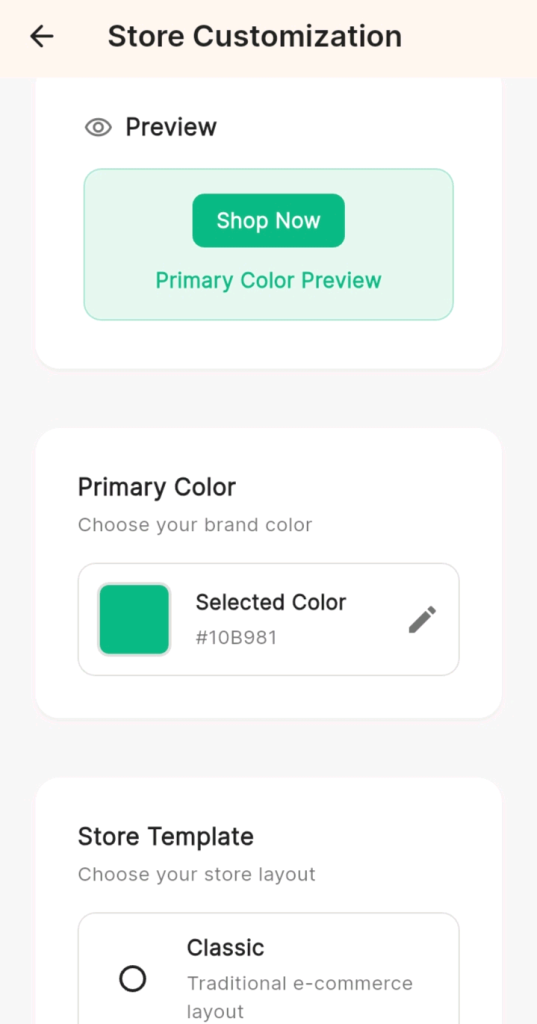
Step 4: Set Your Store Colors and Theme
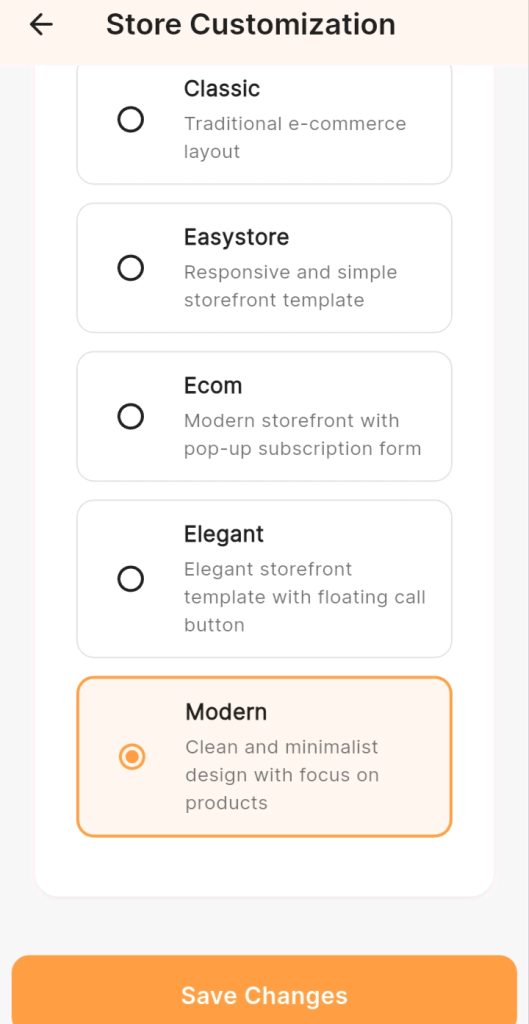
KarryBiz allows you to personalize your store’s color scheme to match your brand identity.
To customize your store colors:
• Navigate to “Store Theme”.
• Choose your primary colour — this is your main brand colour that appears on buttons, highlights, and accents.
• Choose your background colour — light backgrounds generally work best for product displays.
• Preview the changes before saving.
• Tap “Save” when you are happy with the look.
Colour Tip: Stick to 2–3 colours maximum. Too many colours make a store look chaotic. Your logo colours are always a safe starting point.
Colour Psychology For E-commerce
• Orange: Energy, affordability, action.
• Blue: Trust, reliability, professionalism.
• Green: Natural, fresh, health-conscious
• Black: Premium, luxury, sophistication.
• Pink: Feminine, playful, beauty-focused.
Step 5: Organize Your Product Categories
A well-organized store makes it easy for customers to find what they are looking for. If customers can’t find something quickly, they leave.
To set up product categories:
• Go to “Products” from the bottom navigation bar.
• Tap “Categories” or “Manage Categories“.
• Create clear category names that match what you sell.
Examples: Men’s Shoes, Women’s Shoes, Sneakers, Sandals.
• Assign each product to its correct category.
• Tap “Save“.
Step 6: Add Your Store Contact Information
Customers want to know they can reach you if something goes wrong. Displaying clear contact information builds trust and reduces hesitation at checkout.
Add the following to your store:
• WhatsApp number — Most Nigerian customers prefer WhatsApp communication.
• Email address — For formal inquiries.
• Business address — Even a general location helps build trust.
• Social media handles — Link to your Instagram, Facebook, or TikTok.
To update contact info:
• Go to “Store Settings” or “Account Settings” >> “Contact Information“.
• Fill in your details.
• Tap “Save”.
Step 7: Preview Your Store Before Sharing
Before you start sharing your store link with customers, always preview it to see exactly what they will see.
• Go to “Store Settings”.
• Tap “Preview Store” to “View Storefront“.
• Check that everything looks correct: from the logo, banner, products, colors, and description.
• Make any final edits needed.
Final Thoughts
Customizing your KarryBiz store isn’t about making it look fancy — it is about making it look trustworthy, professional, and unmistakably yours.
Every element you add: your logo, your banner, your colors, and your description — tells your customer a story about your business. Make sure that story says: “We are serious. We are professional. You can trust us with your money.”
The best part? You can update and improve your store appearance anytime. As your business grows and your brand evolves, your store can evolve with it.
Start customizing today. Your customers are waiting.