How To Delete A Customer Record On KarryBiz

Not every customer record deserves a permanent place in your database. A contact added by mistake. A duplicate entry created during a bulk import. A customer whose details are completely invalid — wrong number, bounced email, undeliverable address. A test entry you created while learning the platform. A one-time buyer who has since become completely unreachable.
These records don’t just clutter your database, but they actively work against you. They inflate your customer count with meaningless entries. They cause confusion when generating invoices. They distort your analytics by including contacts who will never buy again. And they make it harder to find and focus on the customers who actually matter.
A clean customer database is a productive one. And sometimes keeping it clean means removing records that no longer serve your business.
KarryBiz makes deleting a customer record straightforward with a built-in confirmation step that ensures you don’t delete anyone by accident.
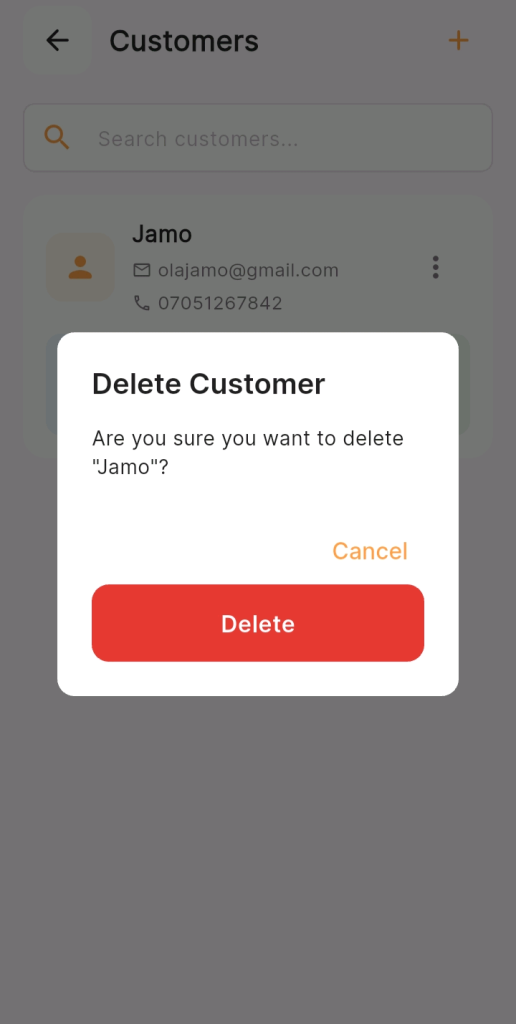
That confirmation modal with a clear Cancel option and a deliberate red Delete button — is KarryBiz’s way of making sure every deletion is intentional.
In this guide, we will walk you through exactly how to delete a customer record on KarryBiz — step by step, exactly as it appears on KarryBiz.
Step-by-Step: How to Delete a Customer Record on KarryBiz
Step 1: Log In to Your KarryBiz Account
Open the KarryBiz app on your smartphone and log in using your registered email address and password.
Once logged in, you will land on your main dashboard.
Step 2: Navigate to the Customers Section
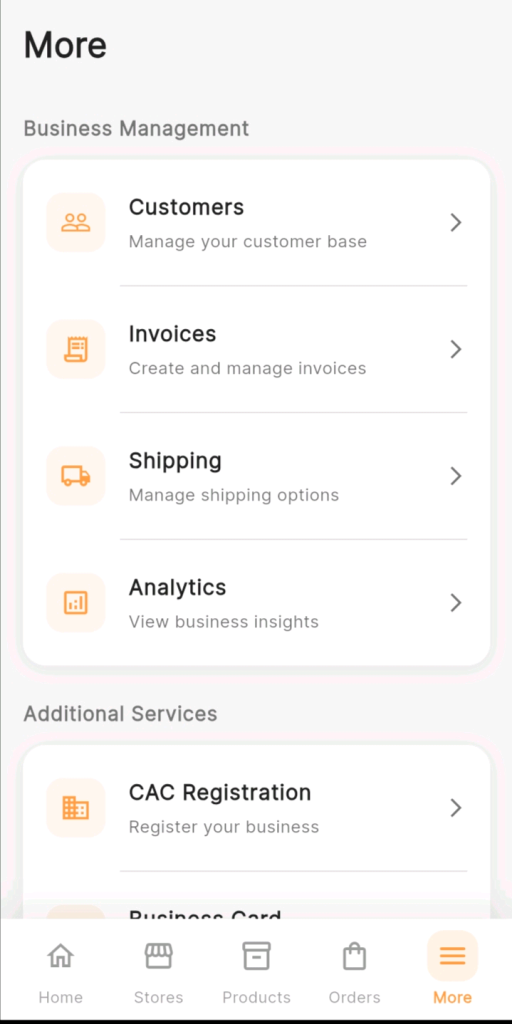
From the bottom navigation bar, tap “More.”
The More page opens displaying the Business Management section at the top, which includes:
• Customers — Manage your customer base (<– Tap this).
• Invoices — Create and manage invoices.
• Shipping — Manage shipping options.
• Analytics — View business insights.
Tap “Customers” to open your customer management page.
Step 3: Locate The Customer You Want to Delete
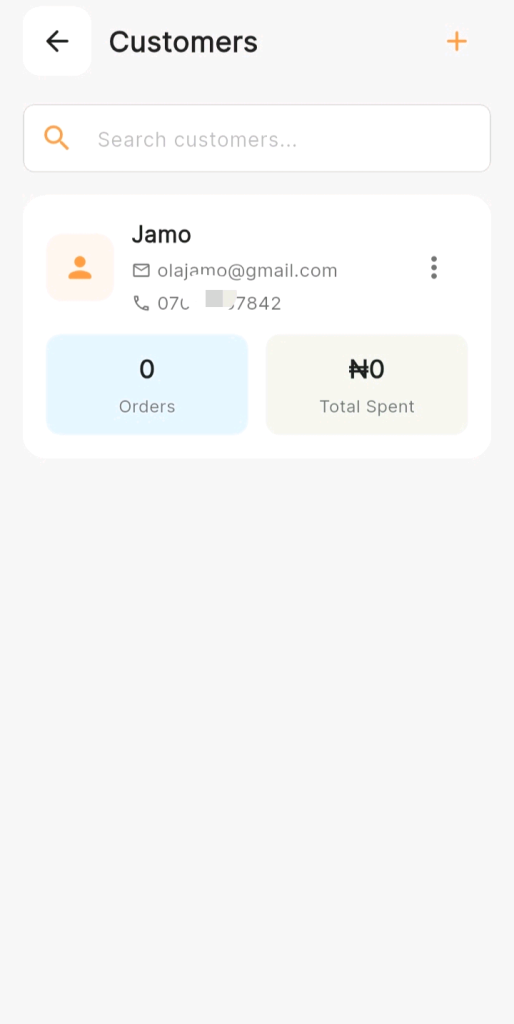
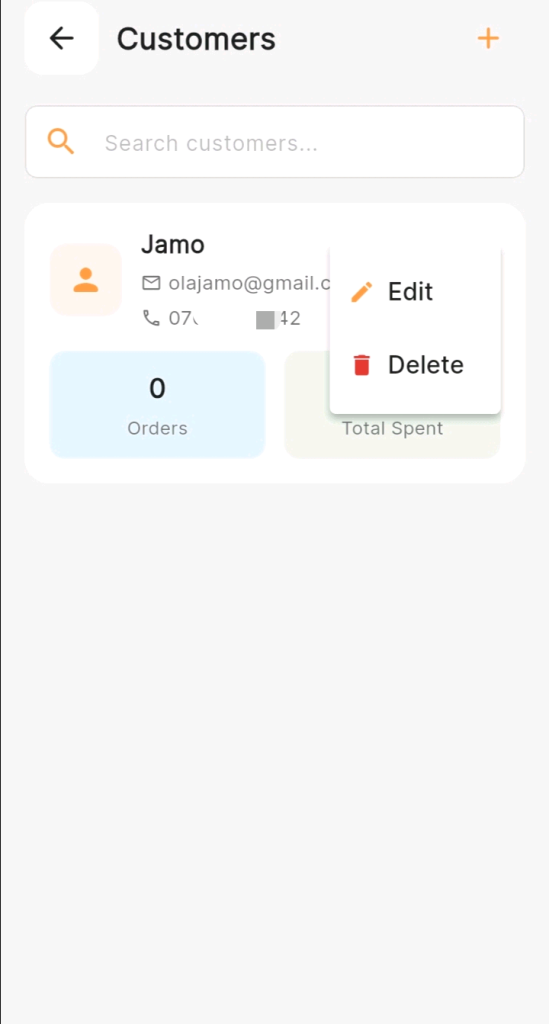
The Customers page displays all your saved customer records as cards.
Each customer card shows:
• Customer’s name in bold at the top.
• Their email address with a mail icon.
• Their phone number with a phone icon.
• Two summary badges: Orders count (blue) and Total Spent (green).
As shown in the app screenshot, a customer card for “Jamo” displays:
Email: [email protected].
Phone: 070xxxxxxxxxxx2
0 Orders | ₦0 Total Spent
To find the specific customer quickly:
• Use the orange search bar at the top — “Search customers…”
• Type the customer’s name, phone number, or email.
• The list filters instantly to show matching results.
Note: Always confirm you have the right customer before proceeding. If you have multiple customers with similar names, use the email or phone number to verify you have selected the correct record.
Step 4: Tap the Three-Dot Menu on the Customer’s Card
On the customer card you want to delete, locate the three vertical dots (⋮) icon on the right side of the card.
Tap the three-dot icon (⋮) to open the action menu.
A small popup menu appears with two options:
• Edit — (displayed in orange with a pencil icon).
• Delete — (displayed in red with a trash can icon).
Step 5: Tap “Delete”
From the action menu, tap “Delete” — the option displayed in red with the trash can icon.
Note: Do not tap Edit by mistake. The Edit and Delete options are clearly differentiated by color — orange for Edit, red for Delete. Double-check before tapping.
Step 6: Read the Confirmation Modal Carefully
After tapping Delete, KarryBiz does not immediately delete the customer. Instead, a confirmation modal appears as a popup overlay on your screen.
The modal displays:
Title: Delete Customer
Message:”Are you sure you want to delete ‘Jamo’?”
Two action buttons:
• Cancel — Cancels the deletion and keeps the record intact.
• Delete — Confirms and permanently deletes the customer record.
Note: This confirmation step is intentional and important. KarryBiz designed it specifically to prevent accidental deletions.
Read the customer name in the confirmation message carefully, as it shows you exactly which customer will be deleted before making your final decision.
Step 7: Make Your Final Decision
At this point, you have two choices:
• Option A: Tap “Cancel” — If You have Changed Your Mind.
• Option B: Or if you realize you have selected the wrong customer, or you have decided deletion is not the right action, tap the orange “Cancel” text button.
The modal closes immediately. The customer record remains completely intact and unchanged. You are returned to the Customers page as if nothing happened.
Step 8: Verify The Customer Has Been Removed
After deletion, confirm the customer no longer appears in your database:
Scroll through your customer list — the deleted customer’s card should be gone.
Use the search bar to search for the deleted customer’s name — no results should appearCheck that your total customer count has decreased by one.
Note: If the customer no longer appears anywhere in your Customers page — the deletion was successful.
Final Thoughts
Deleting a customer record is a small action with permanent consequences. KarryBiz’s confirmation modal, “Are you sure you want to delete ‘User A’?” for instance, exists precisely to give you that final moment of pause before crossing a line that cannot be uncrossed.
Use that moment wisely and ask yourself: Is deletion truly the right action here? Or would editing the record, adding a note, or simply leaving it alone serve my business better?
Most of the time, the answer is to edit and not delete. But when deletion is genuinely the right call, KarryBiz makes it clean, simple, and deliberate.
Keep your database clean. Keep your records accurate. And always read the confirmation before tapping red.