How To Use The Analytics Dashboard On KarryBiz

Every successful business owner eventually reaches the same realization — that the decisions driving the most growth are not the ones made on instinct, but the ones made on data driven evidence.
Evidence about what is selling and what is sitting. Evidence about which customers keep coming back and which ones leave after one purchase. Evidence about whether this month is better or worse than last month and the best explanation for the less patronage.
That data driven evidence lives in your KarryBiz Business Analytics dashboard.
Built directly into the app, the Analytics feature gives every KarryBiz seller access to real-time business intelligence — without spreadsheets, without accountants, and without any technical knowledge. Revenue trends, sales performance, top products, customer behaviour, and order patterns — all presented in a clean, easy-to-read dashboard that tells you exactly how your business is performing at any given moment.
The sellers who check their analytics regularly make smarter decisions. They restock the right products at the right time. They know which customers to prioritize. They can see growth happening in real time or spot problems early before they become expensive.
In this guide, we will walk you through every section of the KarryBiz Business Analytics dashboard — exactly as it appears in the app — and show you how to turn the numbers you see into actions that grow your business.
How To Access The Analytics Dashboard on KarryBiz
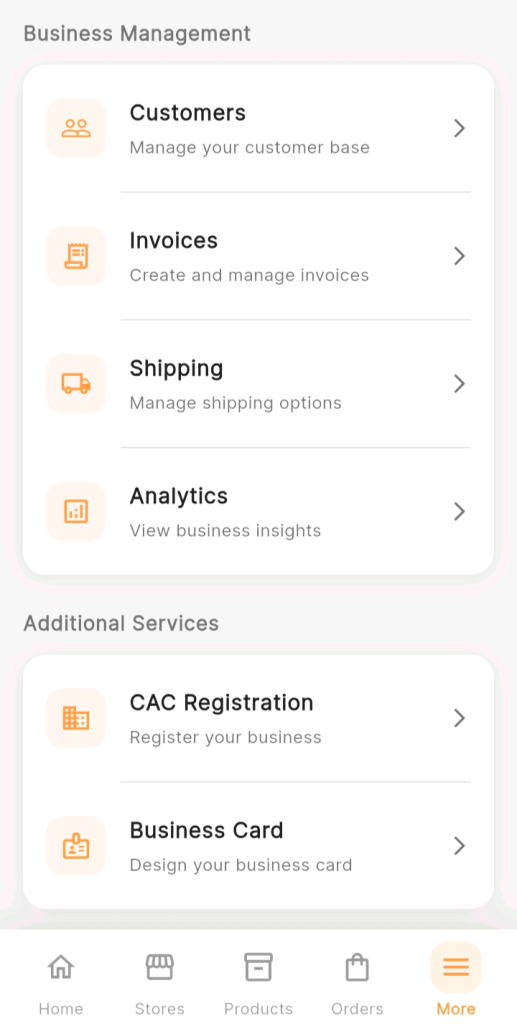
From the bottom navigation bar, tap “More.”
The More page opens showing the Business Management section at the top, which includes:
• Customers: Manage your customer base.
• Invoices: Create and manage invoices.
• Shipping: Manage shipping options.
• Analytics: View business insights (Click on this).
Note: Tap “Analytics” to open the Business Analytics page.
Understanding The Business Analytics Dashboard
Section 1: Time Filter (Choose Your Analysis Period)
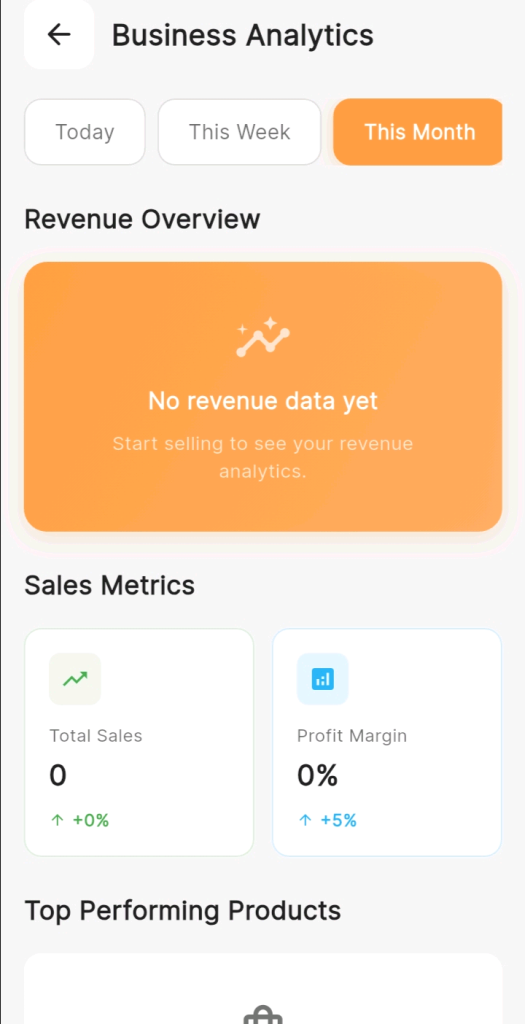
At the very top of the Business Analytics page, you will see three time filter buttons:
• Today.
• This Week.
• This Month (highlighted in orange — selected by default).
These filters control which time period all the data on the page reflects. Tapping any of the three buttons instantly updates every metric, chart, and insight below to show data for that specific period.
How To Use the Time Filter:
• Today: Use this to get a snapshot of the current day’s performance. How many orders have come in today? What revenue has been generated so far? Useful for monitoring daily activity and staying on top of what is happening right now.
• This Week: Use this for a week-in-progress view. Ideal for mid-week check-ins to see if the week is on track and whether any action is needed to hit your targets before the weekend.
• This Month: The default view and the most commonly useful. This gives you a complete picture of your current month’s performance — how sales are trending, how many new customers you have acquired, and how your key metrics compare to last month.
Section 2: Revenue Overview (Your Financial Pulse)
Directly below the time filter, the Revenue Overview section displays your store’s revenue performance for the selected period.
When you have active sales, this section shows:
• A revenue trend graph: a visual chart showing how your revenue has moved over the selected time period.
• Total revenue figure: the exact amount generated in the selected period.
• Trend indicator: whether revenue is up or down compared to the previous equivalent period.
• When your store is new or has no sales for the selected period, the dashboard displays: “No revenue data yet.”
“Start selling to see your revenue analytics.”
Note: This is completely normal for new stores — it is simply KarryBiz prompting you that the data will populate as soon as orders are processed.
Section 3: Sales Metrics
Below the Revenue Overview, the Sales Metrics section presents two essential performance indicators displayed as side-by-side metric cards: displaying total sales and profit margins in percentage from every sales.
Section 4: Top Performing Products
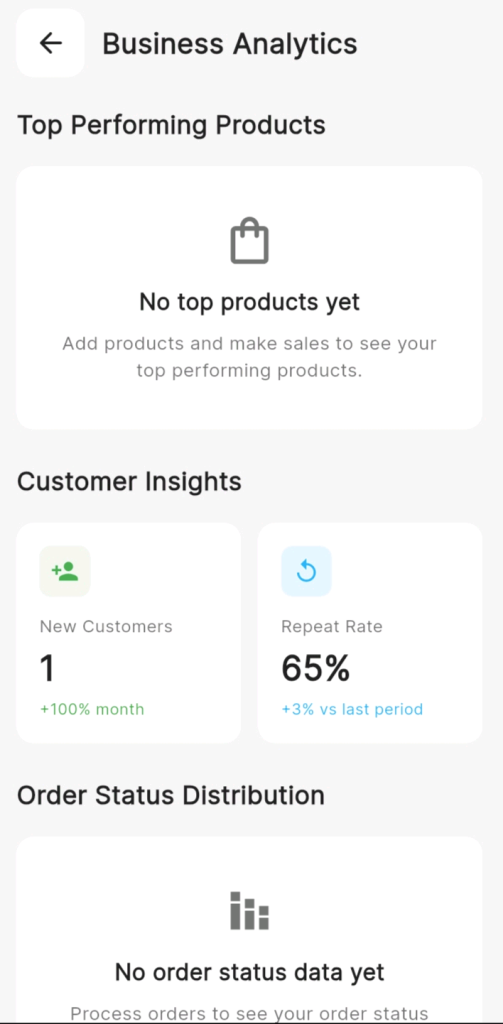
The Top Performing Products section identifies which of your listed products are generating the most sales and revenue.
When you have active sales, this section displays a ranked list of your best-selling products — showing each product’s name, the number of units sold, and the revenue generated.
Section 5: Customer Insights (Understanding Who Is Buying)
The Customer Insights section provides two critical metrics about your customer base — presented as side-by-side metric cards with trend indicators. The trend indicators shows the rate of customers acquisition and the frequency at which they patronize your business.
Section 6: Order Status Distribution (Track Your Operational Health)
The Order Status Distribution section provides a breakdown of your orders by their current status — showing what proportion of your orders are pending, processing, shipped, delivered, or cancelled.
Final Thoughts
The KarryBiz Business Analytics dashboard is not just a reporting tool, but your business’s feedback system. It tells you what is working, what is not, what to do more of, and what to fix.
Every number on that dashboard represents real transactions, real customers, and real decisions that shaped your business performance. Together, they give you something that most small business owners in Nigeria have never had: a complete, real-time picture of their business performance.