How To Manage Processing, Completed, And Cancelled Orders On KarryBiz

Every order that comes into your KarryBiz store goes on a journey.
It starts as a new request. It moves through some preparation and you eventually fulfilling the orders . It ends ideally as a completed delivery in a happy customer’s hands. But sometimes it ends differently. Sometimes things go south and customers change their minds. Or maybe midway stock runs out. Payments don’t come through or life happens.
How you manage each stage of that journey — and how you handle the moments when it doesn’t go as planned — determines two things: your operational efficiency and your customer reputation.
The sellers who treat every order status as just a label to click through are the ones who end up with confused customers, missed deliveries, and a growing backlog of unresolved issues they don’t quite know what to do with.
The sellers who understand what each order status actually means and what specific actions it demands — are the ones whose customers consistently say things like “this seller is so organized” and “I always know what is happening with my order.”
That is what this guide is about. Not just how to change an order status on KarryBiz, but what to actually do at each stage, how to communicate with customers throughout the process, and how to handle the messy situations such as cancellations — professionally and without damaging the relationship.
Part One: Managing Processing Orders
When an order moves to Processing status, it means one thing: you have accepted this order and you are actively preparing it for dispatch.
This is the operational heart of your fulfilment process. The customer is waiting. The clock is running. And the quality of what you do in this stage determines whether the customer receives exactly what they ordered, in perfect condition, within the timeframe you promised.
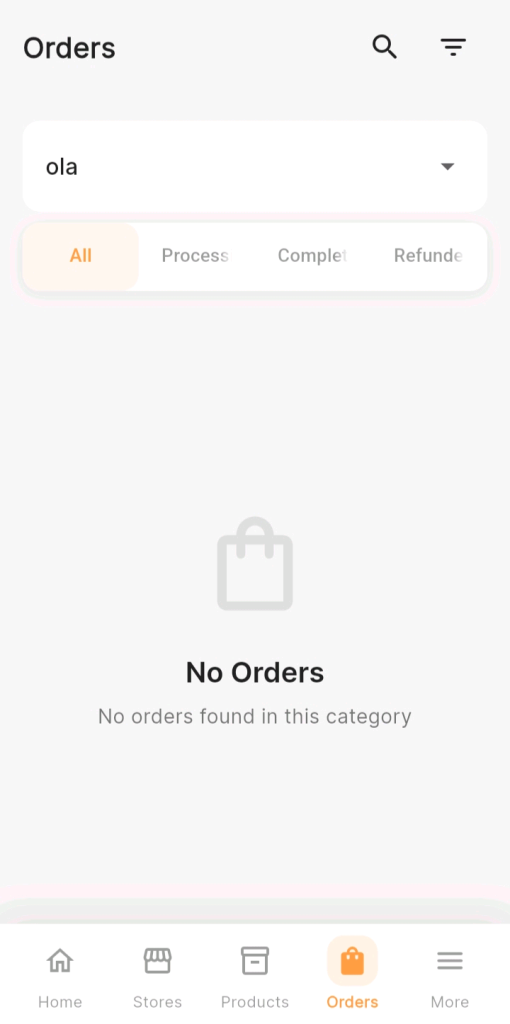
Step 1: Log In and Navigate to Orders
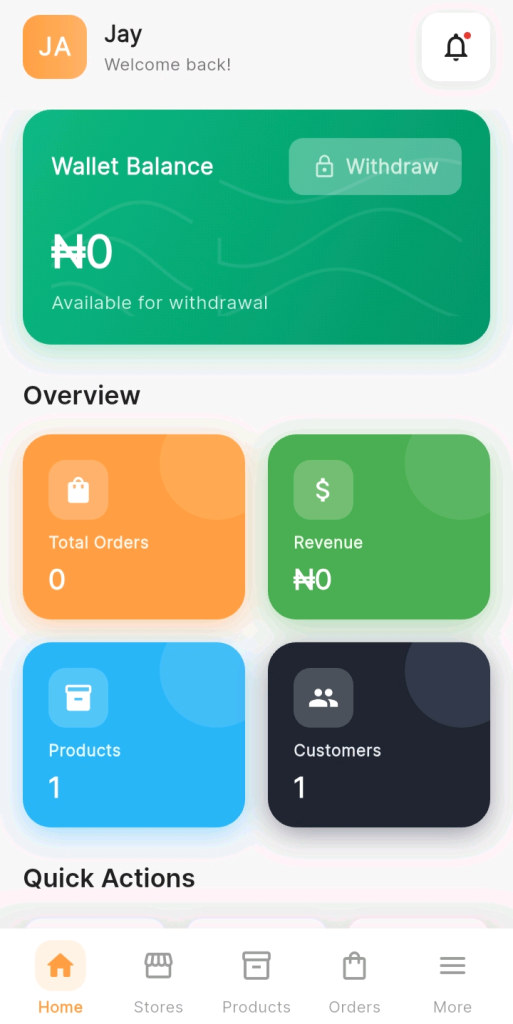
Open the KarryBiz app and log in to your account.
From the bottom navigation bar, tap “Orders.”
Your Orders dashboard opens — showing all orders your store has received, organized by status.
Step 2: Find Your Processing Orders
On the Orders page, filter your view to show orders currently in “Processing” status.
For each processing order, open it to review:
• Customer name and contact details: Who are you preparing this for?
• Products ordered: Exactly what needs to be packed?
• Quantities: How many units of each?
• Variants selected: Did they choose a specific size, color, or option?
• Delivery address: Where is this going?
• Payment status: Has payment been confirmed?
• Any special instructions: Did the customer leave notes about their order?
Step 3: Pick, Check, and Package the Order
Now the physical work begins.
Picking: Retrieve the exact items ordered from your stock. Double-check that you are selecting the correct variant — the right size, color, flavor, or specification. A wrong variant creates a return, a refund, and a disappointed customer.
Quality check:
Before packaging, inspect every item. Check for:
• Damage or defects.
• Correct size and color.
• Expiry dates for food or skincare products.
• Completeness: all components present for multi-part items.
Note: If anything doesn’t pass this check— do not ship it. Address the issue before it becomes the customer’s problem.
Step 4: Update the Order Status to “Processing” in KarryBiz
Once you have confirmed the order, begun preparation, and the order is actively being worked on — update the status in KarryBiz.
To update order status:
• Open the specific order from your Orders dashboard.
• Tap the status update option or the current status label.
• Select “Processing” from the available statuses.
• Save the change.
Step 5: Arrange Dispatch
Once your order is packaged and ready, arrange collection or drop-off with your chosen delivery partner.
Step 6: Update Status to “Shipped” and Notify the Customer
Once you have handed the package to your delivery partner and received a tracking number — update the order status to “Shipped” in KarryBiz and notify the customer immediately.
Part Two: Managing Completed Orders
An order is Completed when the customer has received their product. This is the successful end of the order journey — and it is not just an admin tick-box. It is a strategic moment that most sellers completely waste.
Step 7: Confirm Delivery Before Marking Complete
Before marking any order as Completed — confirm that the customer has actually received it.
Ways to confirm delivery:
• Your delivery partner’s tracking system shows “Delivered“.
• The customer messages you to confirm receipt.
• You spoke to or messaged the customer and they confirmed.
Step 8: Update Status to Completed in KarryBiz
Once delivery is confirmed:
• Open the order from your Orders dashboard.
• Tap the status update option.
• Select “Completed” or “Delivered“.
• Save the change.
Your order is now closed — recorded in your order history and reflected in your analytics.
Step 9: Send Your Post-Delivery Message
This is the step that separates sellers with high repeat rates from those with one-time buyers. As soon as an order is marked complete — or within 24 hours of confirmed delivery — send your post-delivery message.
Step 10: Archive and Review Your Completed Orders
Your completed orders are not just closed files — they are a data source.
Regularly reviewing your completed order history helps you:
• Track monthly revenue: How much did you generate this month vs. last month?
• Identify your most popular products: Which items appear most frequently in completed orders?
• Spot your best customers: Which names keep appearing? These are your retention priorities.
• Confirm invoice accuracy: Every completed order should have a corresponding paid invoice.
Part Three: Managing Cancelled Orders
Let us be honest about something first: cancellations will happen. No matter how good your products are, how clear your descriptions are, or how professional your store looks — some orders will get cancelled.
Customers change their minds. They order the wrong size. Payments don’t come through. Personal circumstances change. Life happens.
The question is not how to eliminate cancellations — you can’t. The question is how to handle them in a way that:
• Resolves the situation cleanly and quickly.
• Protects your reputation: Leaves the door open for the customer to return.
Building A Cancellation Prevention System
The best cancellation management is preventing them in the first place. Here is how to systematically reduce your cancellation rate over time.
• Improve Your Product Information:
Most cancellations that happen before dispatch are information failures. The customer expected something different from what they ordered.
• Review your highest-cancelled products and ask:
• Are the photos accurate and showing the product from all relevant angles?
• Does the description include all key specifications: size, dimensions, materials, colors?
• Is the size guide clear enough for fashion and footwear?
• Are delivery timelines stated explicitly?
• Every gap in your product information is a potential cancellation source.
• Follow Up on Pending Orders Quickly:
Orders that are stuck in Pending — no payment, no confirmation — should be followed up within 3 hours, not 3 days.
• Set Clear Expectations Upfront:
Many cancellations happen because reality didn’t match expectation — and the gap was created before the order was even placed.
• Communicate these things clearly on every product listing:
1. Exact delivery timeframe (not “fast delivery” instead “2–3 business days within Lagos”).
2. Available payment methods.
3. Your returns or exchange policy.
4. Any important product limitations or caveats.
Note: The more precisely you set expectations before purchase, the fewer the surprises after.
Final Thoughts
Every order that comes into your KarryBiz store: processing, completed, or cancelled — is a relationship moment.
A processing order is a promise in motion. Handle it with the care it deserves: accurate picking, careful packaging, timely dispatch, and clear communication — and you deliver on that promise.
A completed order is a relationship checkpoint. Handle it with a genuine follow-up such as thanking the customer, inviting feedback, creating a reason to return and exactly that…you transform a transaction into loyalty.
A cancelled order is a relationship test. Handle it with warmth, zero defensiveness, and immediate resolution — and you turn a potential negative into a demonstration of character that the customer won’t forget.
The orders pipeline is where your customer relationships are either built or broken; one transaction at a time.