How To Add A Customer Manually On KarryBiz


Every great customer database starts with a single name. Before you had a hundred customers, you had just one. Before you had fifty loyal buyers, you had to start with your first. And whether that first customer found you on Instagram, bought from your physical shop, was referred by a friend, or discovered your store through WhatsApp — their details need to live somewhere organized, accessible, and professional.
That somewhere is your KarryBiz customer database.
While the platform allows you to import an entire customer list at once using a CSV file, there are plenty of situations where adding customers one at a time, such as manually is exactly what you need.
A new buyer just placed their first order. A walk-in customer at your physical location wants to be added to your online store. A referral from a friend reaches out via WhatsApp and makes a purchase. A corporate client places a bulk order and gives you their business details.In each of these cases, you do not need to prepare a spreadsheet and run an import. You simply open KarryBiz, navigate to the Customers section, and add that person directly — in under two minutes.
In this guide, we will walk you through exactly how to add a customer manually on KarryBiz — field by field, step by step — along with best practices for building a customer database that actually works for your business.
Why Adding Customers Manually Matters
Before we get into the steps, let us understand why maintaining a proper customer database, not forgetting that even one entry at a time is worth the effort.
• Every Customer Deserves a Proper Record:
When a customer’s details live only in your WhatsApp contacts or your memory, they are vulnerable to being lost. A phone change, a deleted chat, or simply forgetting and that relationship is gone. Adding them to KarryBiz creates a permanent, organized record.
• It Makes Invoicing Instant:
Once a customer is saved in KarryBiz, generating an invoice for them takes seconds. You simply select their name from your customer list rather than typing their details from scratch every time they place an order.
• It Enables Order Tracking Per Customer:
With customers properly saved, every order placed by that customer is linked to their profile. You can see their complete purchase history at a glance — what they bought, when they bought it, and how much they have spent with you.
• It Helps You Identify Your Best Customers:
A well-maintained customer database reveals patterns. Who orders most frequently? Who spends the most? Who hasn’t ordered in a while? These insights help you make smarter decisions about how to grow your business.
• It Builds the Foundation for Customer Loyalty:
Customers who feel known and remembered are customers who come back. Having their details properly recorded means you can address them by name, reference their past orders, and offer personalized service that sets your store apart.

Step-by-Step: How to Add a Customer Manually on KarryBiz
Step 1: Log In to Your KarryBiz Account
• Open the KarryBiz app on your smartphone or visit karrybiz.com on your browser.
• Enter your login credentials and tap “Sign In” to access your dashboard.
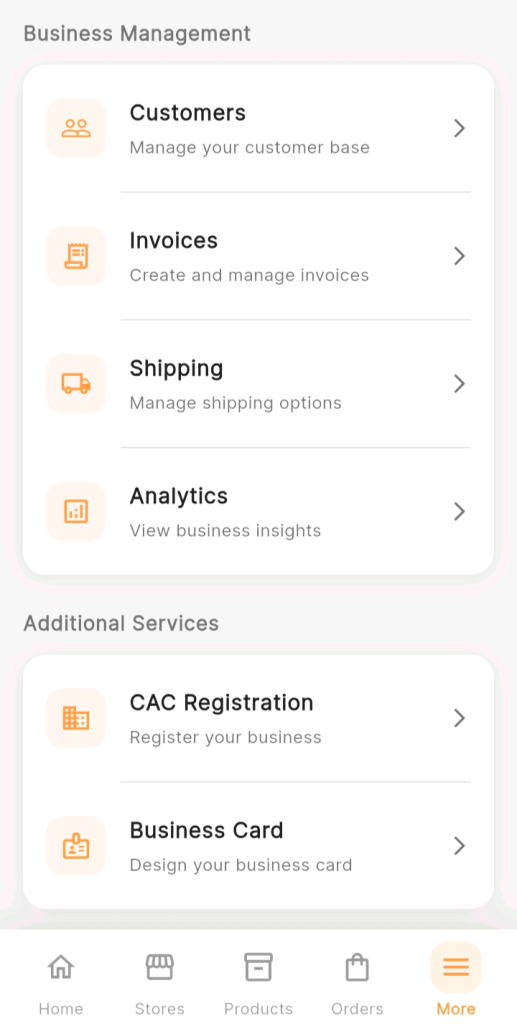
Step 2: Navigate to the Customers Section
From the bottom navigation bar, tap “More.”
This opens the extended menu. Under the “Business Management” section, you will see:
• Customers <—( Tap this).
• Invoices.
• Shipping.
• Analytics.
Tap “Customers” to open your customer management page.
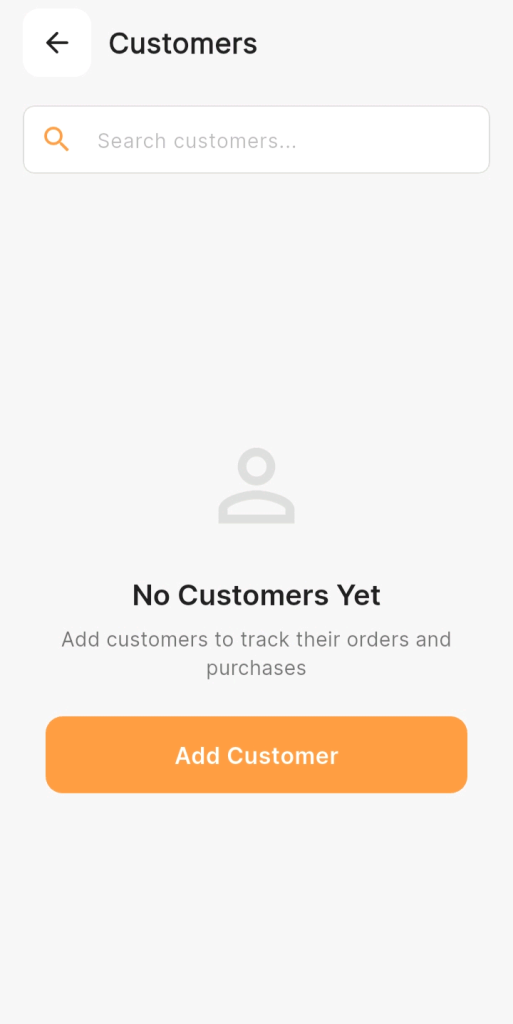
Step 3: Tap the “Add Customer” Button
On the Customers page, look for and tap:
• “Add Customer” or “New Customer“.
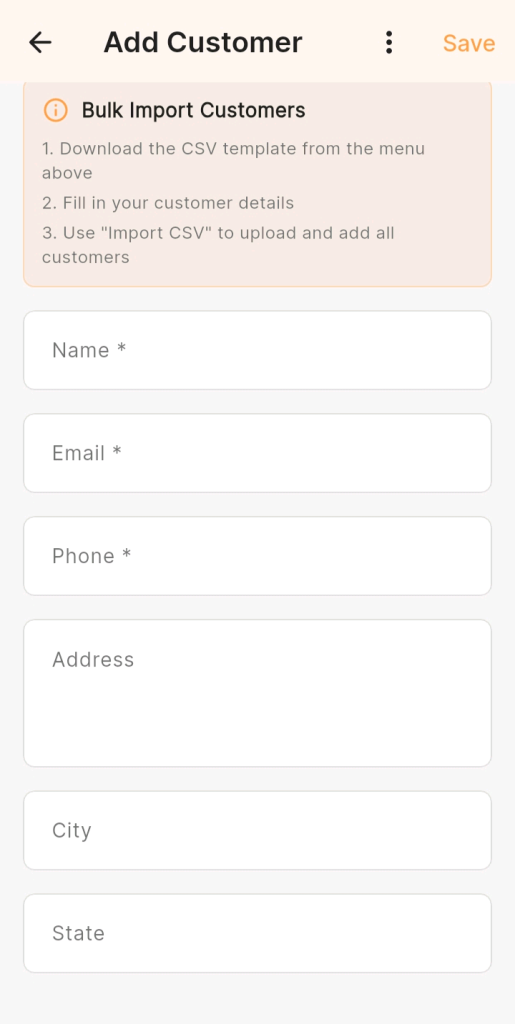
This opens the manual customer entry form where you will fill in your new customer’s details.
Step 4: Enter The Customer’s Name
• The first field on the form is Name.
• Tap the field and type your customer’s full name.
Tips for entering names:
• Use title case such as capitalize the first letter of the name.
• Enter the name as the customer uses it — if they go by a nickname, use that.
• Avoid abbreviations as full names are more professional and searchable.
Step 5: Enter the Customer’s Email Address
• Tap the Email Address field and enter the customer’s email.
This is important for:
• Sending invoices directly to their inbox.
• Formal order communications.
• Any email-based notifications or updates.
Formatting tips:
• Double-check for typos: a wrong email means the customer never receives their invoice.
• Common mistakes to watch for: .vom instead of .com, missing @ symbol, extra spaces.
• If the customer doesn’t have or share an email, leave this field blank and use phone as the primary contact.
Step 6: Enter the Customer’s Phone Number
Tap the Phone Number field and enter the customer’s mobile number.
In Nigeria, this is typically the most important contact field — as WhatsApp communication and SMS are the primary channels for customer interaction.
Formatting tips:
• Use a consistent format: either 080xxxxxxxx or +23480xxxxxxxx.
• Double-check every digit: A wrong number means you can’t reach this customer.
• This number is what you will use to send WhatsApp invoices and order updates.
Step 7: Enter the Customer’s Delivery Address
The address fields allow you to record where the customer’s orders should be delivered.
Fill in as many address fields as you have:
• Street Address: House number and street name.
• City: The customer’s city.
• State: Their state of residence.
• Country: Default is Nigeria for most KarryBiz sellers.
Step 8: Save the Customer Profile
Once you have filled in all the available and relevant fields, tap:
• “Save”.
• “Add Customer”.
• “Create Customer”.
Your new customer is now saved in your KarryBiz customer database.
Step 9: Verify the Customer Was Added Successfully
After saving, you will be returned to the Customers page or taken directly to the new customer’s profile.
Confirm that:
• The customer’s name appears correctly in your customer list.
• Their contact details are displaying accurately.
• Their profile is accessible and complete.
Final Thoughts
A business is built on relationships. And relationships are built on being known, being remembered, and being treated as an individual, rather than just a transaction.
Every customer you add manually to KarryBiz is a relationship you are choosing to invest in. A name you will remember. A phone number you can reach. A profile that grows richer every time they come back.
It takes less than two minutes to add a customer. But the value of that two-minute investment compounds with every order they place, every invoice you generate, and every time you are able to greet them by name and reference their history with your store.
Start with one customer. Then another. Then another.That is how a customer database and a loyal customer base gets built overtime.