How To Import Customers on KarryBiz


I want to assume you didn’t start your KarryBiz journey from zero. Before you ever opened your KarryBiz store, you already had customers. People who have bought from you before; contacts saved in your phone. A WhatsApp group of loyal buyers. A list of clients you have served through Instagram DMs, physical sales, or referrals. That list however long or short it is, is one of the most valuable assets your business owns.
Because here is what every experienced entrepreneur knows: Selling to an existing customer is five times easier than converting a brand new one.
An existing customer already knows you. They have already trusted you with their money once. They already have an opinion of your products — and if that experience was good, they are primed and ready to buy again.
The question is: how do you bring those customers into your KarryBiz store so you can manage them, communicate with them, and sell to them more effectively?The answer is the customer import feature.
KarryBiz allows you to import your existing customer list directly into your store — in bulk, in minutes, without manually entering each person one by one. Once imported, your customers live in your KarryBiz dashboard where you can view their details, track their orders, generate invoices for them, and build stronger business relationships over time.
In this guide, we will walk you through exactly how to import customers on KarryBiz (step by step) along with tips for preparing your customer data, avoiding common mistakes, and making the most of your customer list once it is inside the platform.
Why Importing Your Customers Into KarryBiz Matters
Before we get into the steps, let us talk about what you actually gain by importing your customer list.
Right now, your customer information is probably scattered across multiple places — your phone contacts, WhatsApp chats, Instagram DMs, a notebook, a Google Sheet, or your memory. Importing them into KarryBiz centralizes everything into one organized, searchable database.
• Faster Invoice Generation:
When your customers are already saved in KarryBiz, generating an invoice takes seconds — you simply select the customer from your list rather than typing their details from scratch every single time.
• Better Order Management:
Linked customer profiles mean every order, invoice, and interaction is connected to the right person. You can see a complete transaction history for any customer at a glance.
• Smarter Business Decisions:
A centralized customer database gives you visibility into who your most valuable customers are, how often they buy, and what they typically order — information that helps you market smarter and sell more.
• Professional Customer Relationships:
Customers who feel known and remembered by a business are customers who stay loyal. Having their details properly recorded means you can address them by name, reference past orders, and provide a personalized experience that sets you apart.
• Time Saved at Scale:
If you have 50, 100, or 500 customers — adding them one by one manually would take hours. The import feature lets you bring them all in at once.

What You Will Need Before You Start
Before importing customers into KarryBiz, have the following ready:
• An active KarryBiz account with a store set up.
• Your customer list compiled and organized.
• A spreadsheet tool such as Google Sheets or Microsoft Excel.
• Your customer data exported or copied from wherever it currently lives.
A saved CSV file of your customer list (we will show you how to create this).
What is a CSV file?
CSV stands for Comma-Separated Values. It is a simple file format that stores data in rows and columns — like a spreadsheet — and is universally compatible with almost every platform and app. Think of it as a universal language for data transfer. KarryBiz uses this format to import customer lists.
Part One: Preparing Your Customer List
The most important part of the import process happens before you even open KarryBiz. Getting your customer data properly organized is what determines whether the import goes smoothly or runs into errors.
Step 1: Gather Your Customer Information
Start by collecting all your existing customer data from wherever it currently lives:
• Your phone contacts — Go through and identify all business customers.
• WhatsApp chats — Extract names and numbers from conversations.
• Instagram DMs — Note names, usernames, and any contact details shared.
• Previous order records — Bank transfer alerts, receipts, or delivery notes.
• Physical notebooks or records — Digitize any handwritten customer information.
• Google Sheets or Excel files — If you already have a list, you are ahead of the game.
• Email inbox — Pull contact details from customer emails.
• Don’t worry about perfection at this stage — just gather everything you have. You will clean and organize it in the next step.
Step 2: Create Your Customer Spreadsheet
• Open Google Sheets (free at sheets.google.com) or Microsoft Excel on your computer or phone.
• Create a spreadsheet with the following column headers in the first row:First name, Last name, email, phone, address, city, and State.
Step 3: Fill In Your Customer Data
Starting from Row 2, enter each customer’s information — one customer per row.
Step 4: Clean Your Data
Before exporting your spreadsheet, take a few minutes to clean your data. This step prevents errors during import and ensures your customer records are accurate.
Step 5: Download Your Spreadsheet as a CSV File
Once your customer data is clean and complete, export it as a CSV file.
In Google Sheets:
• Click “File” in the top menu.
• Hover over “Download“.
• Click “Comma-separated values (.csv)“.
• The file will download automatically to your device.In Microsoft Excel:
• Click “File” -> “Save As“.
• Choose your save location.
• In the “Save as type” dropdown, select “CSV (Comma delimited) (*.csv)”.
• Click “Save”.
Part Two: Importing Your Customers Into KarryBiz
Now that your CSV file is ready, let us bring your customers into KarryBiz.
Step 6: Log In to Your KarryBiz Account
• Open the KarryBiz app on your smartphone or visit karrybiz.com on your browser.
• Enter your login credentials and tap “Sign In” to access your dashboard.
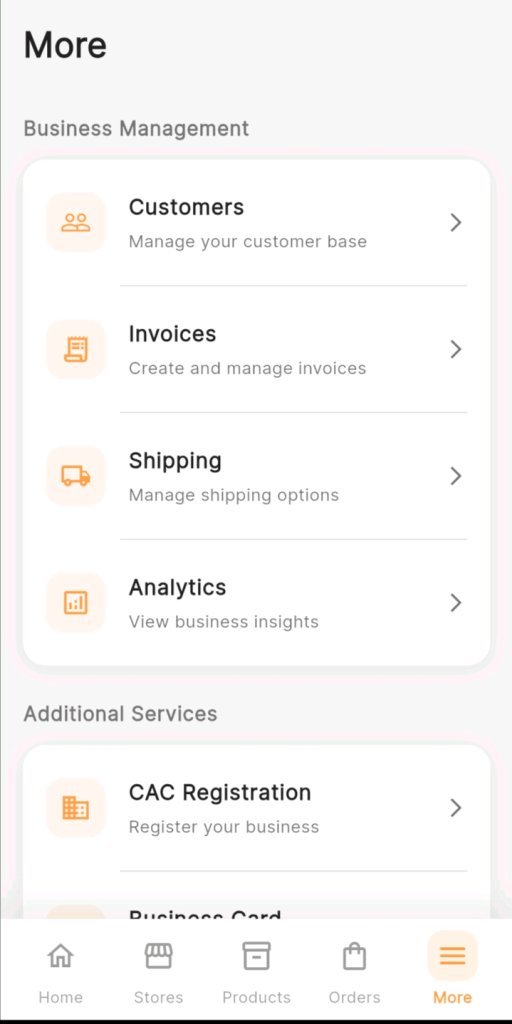
Step 7: Navigate to the Customers Section
From the bottom navigation bar, tap “More.”
This opens the extended menu. Under the “Business Management” section, you will see:
• Customers (Tap this).
• Invoices.
• Shipping.
• Analytics.
• Tap “Customers” to open your customer management page.
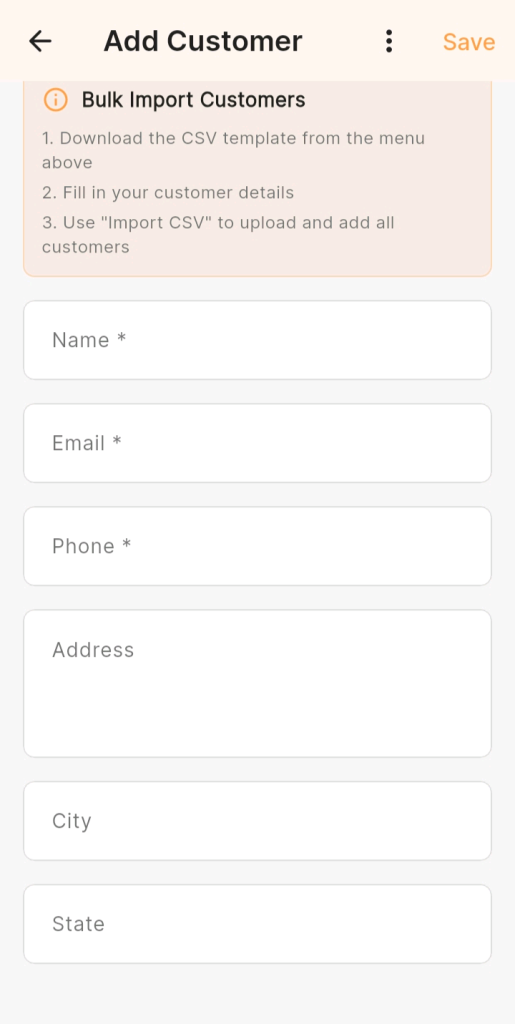
Step 8: Find the Import Option
On the Customers page, look for an “Import” button or option (in this case it is the three vertical dots).
It may appear as:
• “Import Customers“, “Upload Customers“, or “Import from CSV“.
• Tap on it to open the import interface.
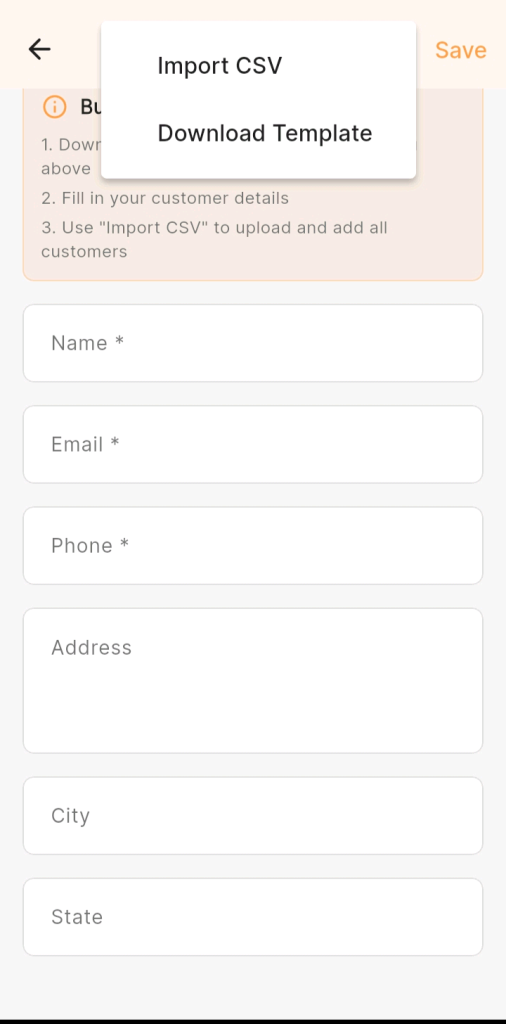
Step 9: Download KarryBiz’s Customer Import Template (as shown above)
Some platforms — including KarryBiz — provide a ready-made CSV template for customer imports. Using this template is highly recommended because:
• The column headers are already formatted exactly as KarryBiz expects.
• It eliminates the risk of header mismatch errors.
• It shows you exactly what data fields are supported.
KarryBiz offers a template download:
• Tap “Download Template”(give KarryBiz app storage access for this function).
• Open the template file.
• Copy your customer data into the template columns.
• Save as CSV and proceed to the next step.
Step 10: Upload Your CSV File
On the import page, tap:
• “Choose File”.
• “Select File”.
• “Upload CSV” or drag and drop your file into the upload area (on desktop).
• Navigate to where your CSV file is saved on your device and select it.
KarryBiz will begin processing your file. Depending on the size of your customer list, this may take a few seconds to a minute.
Step 11: Map Your Data Fields
After uploading your CSV file, KarryBiz may display a field mapping screen — this is where you confirm that each column in your spreadsheet matches the correct field in KarryBiz.
Step 12: Preview and Confirm the Import
Before finalizing, KarryBiz will typically show you a preview of the first few rows of your import — so you can confirm the data looks correct before it is fully uploaded.
Final Thoughts
Your customer list is not just a collection of names and phone numbers. It is your business’s most valuable relationship asset.
Every name on that list represents a real person who has trusted you enough to buy from you. Every phone number is a direct line to a potential repeat sale. Every email address is an invitation to keep the conversation going.
Importing your customers into KarryBiz is the first step toward managing those relationships with the professionalism and intentionality they deserve. It centralizes your data, saves you time, and unlocks a clearer picture of who your customers are and how to serve them better.
You have already done the hard part of earning those customers. Now give them a proper home in your KarryBiz dashboard — and watch what happens when you start managing those relationships with purpose.