How To Delete Your KarryBiz Account Permanently

Deleting an account is never a decision to take lightly.
Maybe your business circumstances have changed. Maybe you are moving to a different platform. Maybe you want to start fresh with a new account. Maybe you simply no longer need your KarryBiz store and want to close everything down cleanly.
Whatever your reason maybe, KarryBiz respects your right to delete your account and has built a clear, transparent process to do so.
But before you tap that red button, there are things you absolutely must know.
Because as KarryBiz clearly states on the Delete Account page: “Warning: This action is permanent.”
“Deleting your account will permanently remove all your data including stores, products, orders, customers, and transaction history. This action cannot be undone.”
Read that again. This action cannot be undone!
Once your KarryBiz account is deleted — your stores, products, orders, customer data, wallet balance, and entire business history on the platform are gone. Permanently. There is no recovery option. There is no “undo.”
This guide exists to make sure you fully understand what you are doing before you proceed and to walk you through every step of the deletion process exactly as it appears in the app.

Before You Delete: Important Steps to Take First
If you have decided to proceed with account deletion, do the following before submitting your deletion request. Once the account is gone, none of this will be recoverable.
1. Withdraw Your Entire Wallet Balance:
This is the most urgent step. Any funds remaining in your KarryBiz wallet at the time of account deletion will be lost. Go to your wallet:
• Withdraw your full available balance to your linked bank account.
• Wait for the transfer to confirm in your bank before proceeding.
• Check that your pending balance has also cleared before deleting.
Note: Do not delete your account with any balance remaining in your wallet. Those funds cannot be recovered after deletion.
2. Download or Export Your Business Data:
Your order history, customer list, invoices, and analytics reports represent months or years of valuable business data. Export and save everything you may need in the future.
3. Inform Your Active Customers:
If you have active customers who regularly order from your KarryBiz store, let them know your store is closing. Give them adequate notice and provide alternative ways to reach you if needed.
Channels to notify customers:
• WhatsApp broadcast message.
• Instagram and Facebook posts.
• WhatsApp status update.
• Direct messages to your most loyal buyers.
4. Fulfill All Outstanding Orders:
Do not delete your account while any orders are still pending, processing, or in transit. Complete or resolve every active order first including any refunds owed to customers.
Deleting your account with outstanding orders means those customers may never receive their products or refunds — damaging your reputation even after you have left the platform.
5. Cancel Any Active Subscriptions or Services:
If you have any active paid services through KarryBiz such as a pending CAC registration or any premium features — resolve or cancel these before deleting your account.
6. Note Your CAC Registration Details:
If you registered your business through KarryBiz, your CAC registration documents and registration number are separate from your KarryBiz account — they exist with the Corporate Affairs Commission independently. However, save all documents and reference numbers before deleting your account.
Step-by-Step: How to Delete Your KarryBiz Account
Step 1: Log In to Your KarryBiz Account
Open the KarryBiz app on your smartphone and log in using your registered email address and password.
Make sure you are logged into the correct account — the one you intend to permanently delete.
Step 2: Navigate to Delete Account
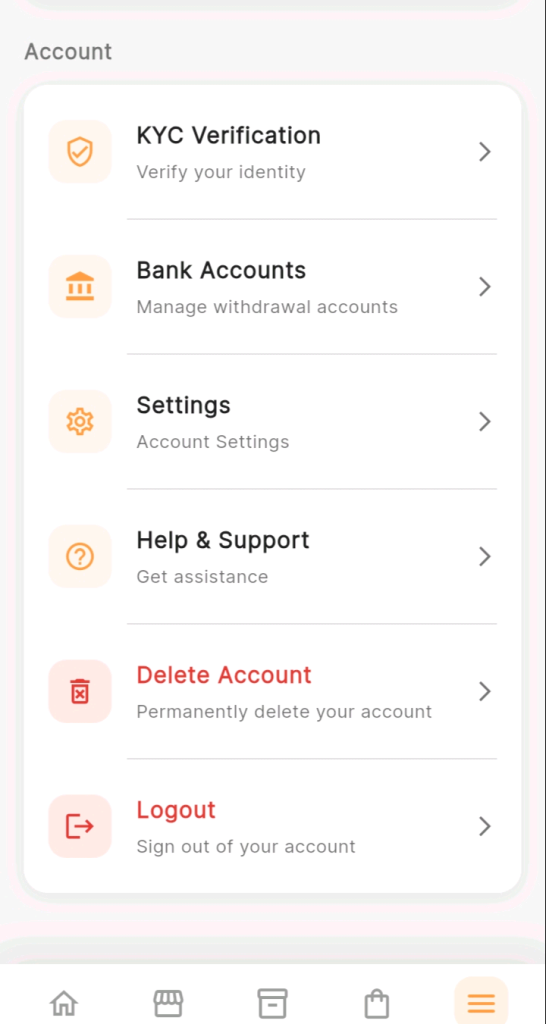
From the bottom navigation bar, tap “More.”
Scroll to the “Account” section. You will see the following options:
• KYC Verification.
• Bank Accounts.
• Settings.
• Help & Support.
• Delete Account: Permanently delete your account <– Tap this (displayed in red).
• Logout.
• Tap “Delete Account.”
Notice the red color. KarryBiz displays the Delete Account option in red — a deliberate design choice to signal caution and severity. This is not a routine action. Treat it accordingly.
Step 3: Read The Warning Carefully
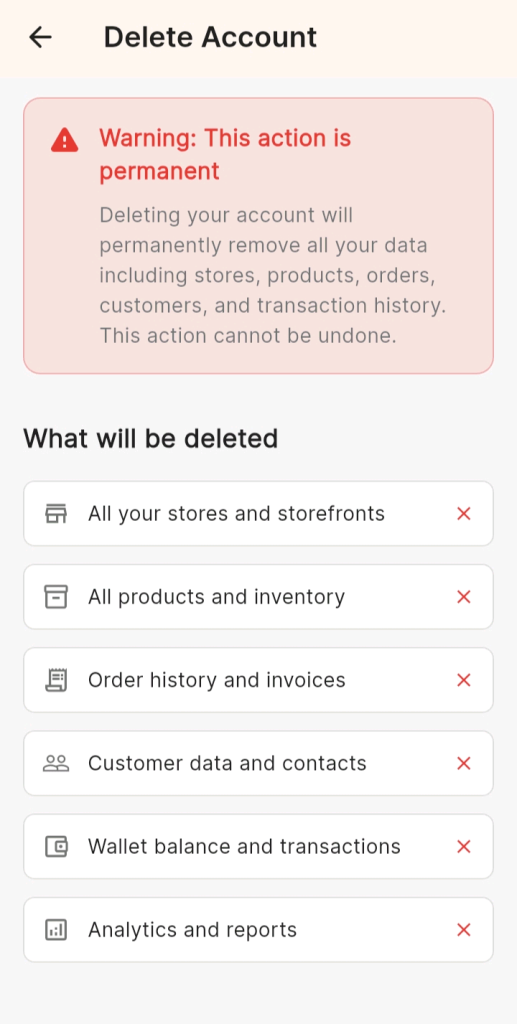
The Delete Account page opens with a prominent red warning banner at the top:
“Warning: This action is permanent”
“Deleting your account will permanently remove all your data including stores, products, orders, customers, and transaction history. This action cannot be undone.”
Step 4: Tell KarryBiz Why You Are Leaving
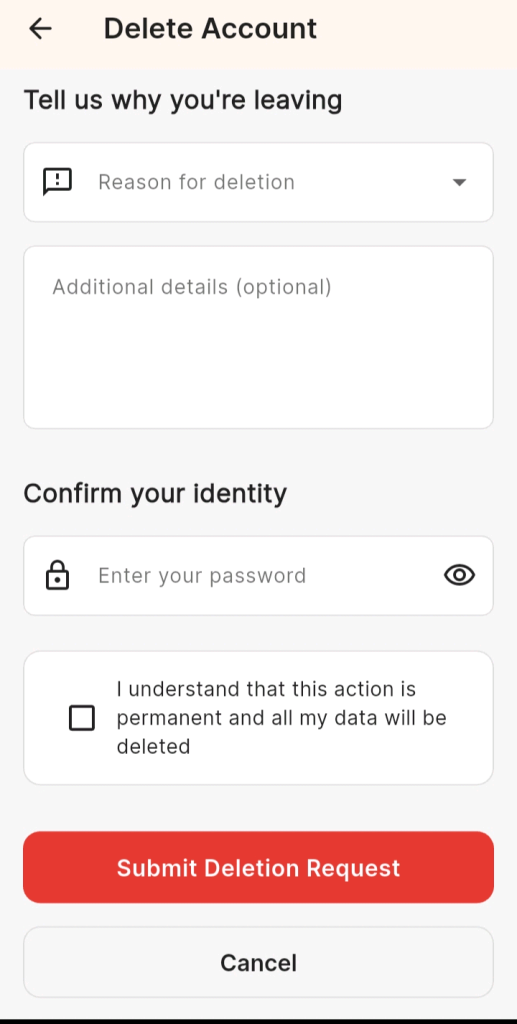
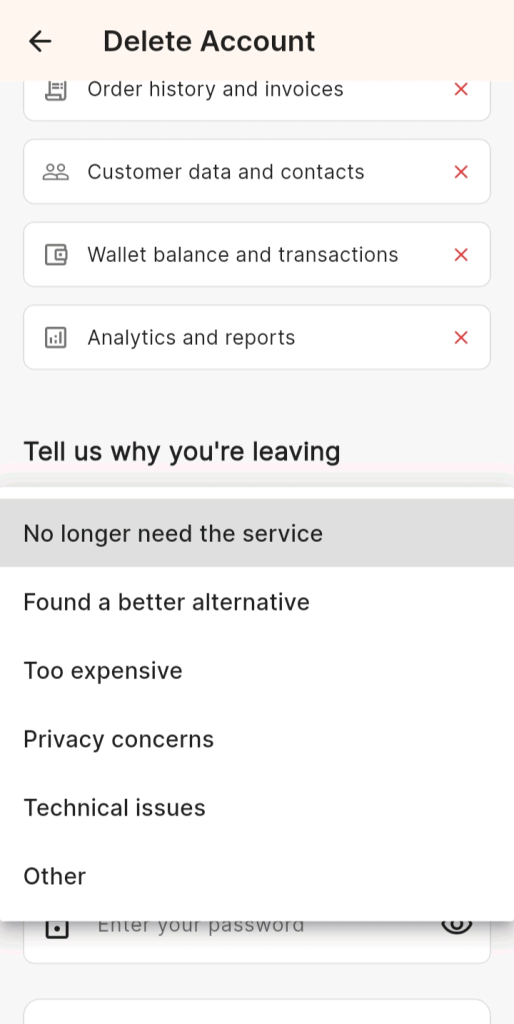
Scroll down past the warning and deletion list to the section titled “Tell us why you are leaving.”
This section has two fields:
Reason for Deletion (Dropdown):
Tap the “Reason for deletion” dropdown and select the option that best describes why you are deleting your account.
Common reasons typically include options such as:
• No longer need the service.
• found a better alternative.
• Too expensive.
• Technical issues.
• I have privacy concerns.
• Other.
Select the most accurate reason from the available options.
Additional Details (Optional):
Below the dropdown is a free-text field for “Additional details (optional).”
Use this field to provide any extra context about your decision — specific feedback, suggestions, or circumstances that aren’t captured by the dropdown options. This is genuinely valuable feedback. KarryBiz uses this information to improve the platform for other sellers. If there is something specific that led to your decision to leave, sharing it here could help future users have a better experience.
Step 5: Confirm Your Identity
The next section is “Confirm your identity” — a security step to ensure that the person requesting account deletion is the legitimate account owner.
You will be asked to:
• Enter Your Password.
• Tap the “Enter your password” field and type your current KarryBiz account password.
• Tap the eye icon on the right side of the field if you want to toggle password visibility to confirm you have typed it correctly.
Note: Forgotten your password? Do not proceed with account deletion until you can confirm your identity. Go to the login screen and use the “Forgot Password” option to reset your password first, then return to complete the deletion process.
Step 6: Check the Confirmation Checkbox
Below the password field, you will see a confirmation checkbox with the statement:
“I understand that this action is permanent and all my data will be deleted”
Tap the checkbox to tick it — confirming that you have read, understood, and accepted the permanent and irreversible nature of account deletion.
Note: This checkbox is not a formality. It is your explicit acknowledgment that you understand what you are doing. Do not check it unless you are certain you want to permanently delete your account.
Step 7: Tap “Submit Deletion Request”
Once you have:
• Selected your reason for deletion.
• Entered your password correctly.
• Checked the confirmation checkbox.
The large red “Submit Deletion Request” button at the bottom of the page will become active.
Tap it to submit your account deletion request.
Note: This is the point of no return. Once you tap this button and your request is processed, your account and all associated data will be permanently deleted. There is no confirmation email to click, no grace period to cancel, and no recovery option.
Step 8: Tap “Cancel” If You have Changed Your Mind
If at any point during this process you decide you do not want to delete your account, tap the “Cancel” button displayed below the Submit Deletion Request button.
This will close the deletion process and return you to the previous screen — with your account fully intact and unchanged.
Final Thoughts
Deleting your KarryBiz account is a significant, permanent decision and KarryBiz has designed the process to make sure you fully understand that before you proceed.
The warning is clear. The list of what gets deleted is explicit. The confirmation checkbox is intentional. Every step of the process is designed to give you pause — to make sure you are certain before crossing a line that cannot be uncrossed.
If you have completed the pre-deletion checklist, made peace with losing all your data, and are ready to move on — the process is straightforward. Select your reason, enter your password, confirm your understanding, and submit.
But if there is even a moment of doubt — tap Cancel.
Your account will be right there waiting for you. And so will all the tools KarryBiz has built to help your business grow.