How To Preview Your Store Before Publishing on KarryBiz

Imagine spending hours setting up your online store.
You have uploaded your logo. Written your store description. Listed your products with beautiful photos and competitive prices. You are excited and ready to start raking in sales.
You share your store link with customers, and then someone messages you:
“Oga, your store logo is blurry.”
Or worse:”I tried to place an order but the price is showing wrong.”
Or the most painful one: “Your store link isn’t opening.”
All of that could have been caught and fixed in under five minutes — if you had simply previewed your store before sharing it.
Previewing your store is the step most new sellers skip because they are eager to start selling. But it is one of the most important steps in the entire setup process.
It is your final quality check and your chance to see exactly what your customers will see before they see it.Think of it as a dress rehearsal before the main performance. You wouldn’t perform on stage without a rehearsal. Don’t launch your store without a preview.
In this guide, we will walk you through exactly how to preview your store on KarryBiz, what to look for during your review, and how to fix issues before a single customer notices them.
Why Previewing Your Store Matters
Skipping the preview step is one of the most common and most costly mistakes new store owners make. Here is what is really at stake:
• First Impressions Are Permanent:
A customer who lands on a broken, incomplete, or poorly displayed store will leave immediately and they will not come back. You only get one first impression. Make sure it is a good one.
• Errors Are Invisible to the Creator:
When you build something, you stop seeing it clearly. You know what it is supposed to look like, so your brain fills in the gaps — even when something is wrong. Previewing forces you to look at your store the way a stranger would.
• Mobile and Desktop Display Differently:
What looks perfect when you are editing on your phone might look completely different on someone else’s device. Previewing lets you catch display issues across different screens.
• Pricing and Product Errors Are Costly:
A product listed at ₦500 instead of ₦5,000 because of a missed zero is a painful mistake. Previewing your store gives you a chance to catch and fix pricing errors before they cost you money.
• It Builds Your Own Confidence:
There is a psychological benefit to previewing your store too. When you see it looking clean, professional, and complete — you feel ready. That confidence shows in how you market your store to customers.

Step-by-step Process To Preview Your Store
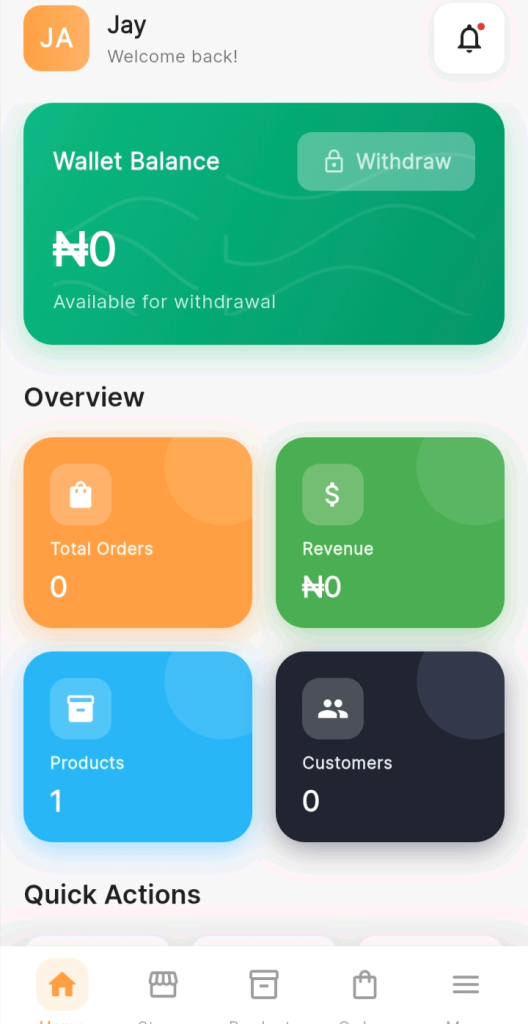
Step 1: Log In to Your KarryBiz Account
• Open the KarryBiz app on your smartphone or visit karrybiz.com on your browser.
• Enter your login details and tap “Sign In” to access your dashboard.
Step 2: Navigate to Your Store
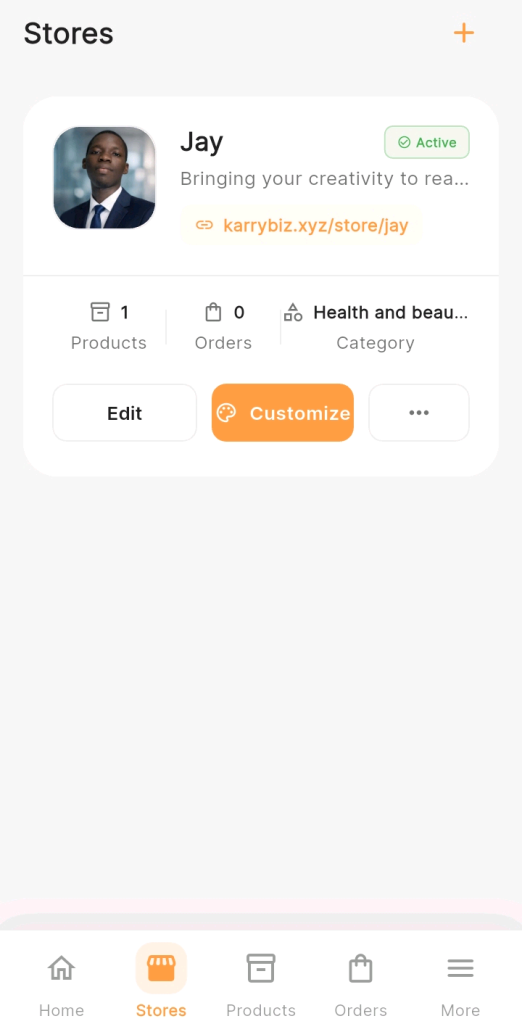
• From the bottom navigation bar, tap “Stores.”
• Select the store you want to preview from your list of stores.
Step 3: Open Store Settings
Once inside your store management page, tap:
• “Edit Store.”
• or “Customize”
This opens your store configuration panel where the preview option is located.
Step 4: Tap “Preview Store” or “View Storefront”
Inside your customize settings, look for a button or option labeled:
• “Preview Store” or a small eye icon indicating a view/preview function.
• Tap on it.
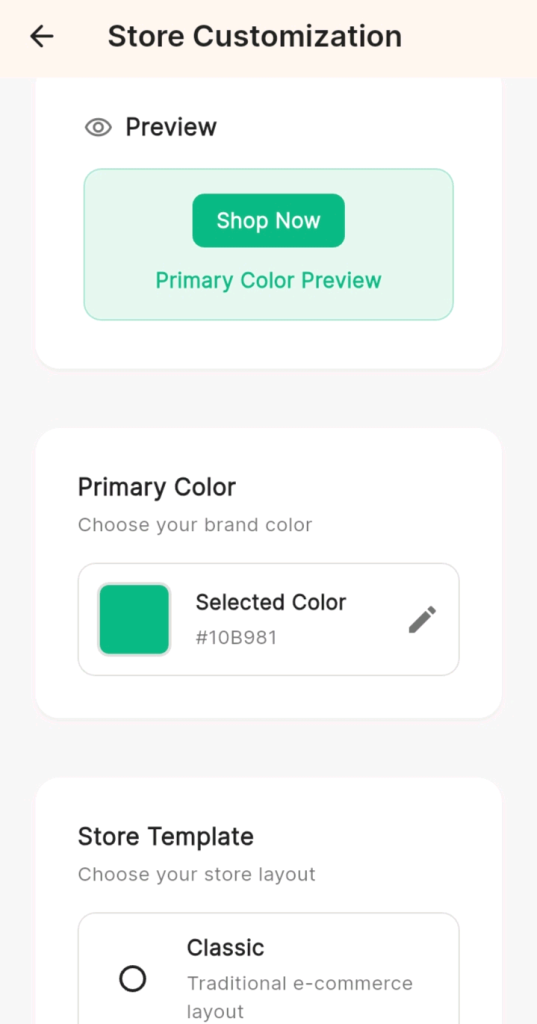
KarryBiz will load your store exactly as customers will see it — with your logo, banner, description, products, pricing, and contact information all displayed in their final form.
Step 5: The Customers’ Point of View(POV)
Alternative method: You can also copy your store link and paste it into your phone’s browser to view it as a customer would — without being logged in as the store owner.
Step 6: Test Your Store as a Customer
Don’t just look at your store — actually use it the way a customer would.
Go through the entire customer journey from start to finish:
• Arrive at the store: Does the landing experience feel welcoming?
• Browse products: Is it easy to find what you are looking for?
• Open a product: Does the product detail page load correctly with all information?
• Add to cart: Does the add-to-cart function work?
• Proceed to checkout: Is the checkout process smooth and clear?
• Check contact options: Can you easily find how to reach the seller?
Pro tip: Ask a friend or family member to visit your store link and give you honest feedback. Fresh eyes notice things you have become blind to. Tell them to browse it like a real customer — not like someone trying to be nice.
Step 7: Preview on Multiple Devices
Your store will be visited on many different devices — smartphones of different sizes, tablets, and desktop computers.
What looks great on your phone might display differently elsewhere.Where possible, preview your store on:
• Your smartphone (Android or iPhone)A friend’s smartphone (different screen size or operating system).
• A laptop or desktop browserBoth Chrome and Safari browsers.
• If your store looks good across at least two different devices, you are in great shape to go live.
Final Thoughts
Previewing your store before publishing is the difference between launching with confidence and launching with regret. It costs you nothing but five minutes. Yet it protects you from the embarrassment of errors, the frustration of lost sales, and the damage of a poor first impression.
Every successful store owner treats their storefront with the same care and attention they had give a physical shop before opening day. They check everything. They fix what needs fixing, only then they open the doors.Your KarryBiz store deserves that same level of care.
Preview it. Perfect it. Publish it and let order start pouring in.