How To Organize Your Store With The Right Category On KarryBiz

When you set up your KarryBiz store, one of the most important decisions you will make is one that most sellers rush through without giving it much thought. And that is choosing your store category. It is easy to treat it like a formality by just pick anything and move on.
But your store category does real work for your business. It tells KarryBiz what kind of store you are running. It helps the platform organize and display your store correctly.
And it also signals to potential customers at a glance, what they will find when they step inside your store. Think of it this way. If you walked into a shopping mall and there were no signs telling you what was in each shop, you had have to open every door to find what you need. Frustrating, right? Store categories are those signs.
They give context before a customer even clicks. Getting your category right from the start — or correcting it if you have been using the wrong one — is a small thing that makes a meaningful difference.
In this guide, we will walk you through exactly how to set and update your store category on KarryBiz.
What Is a Store Category on KarryBiz?
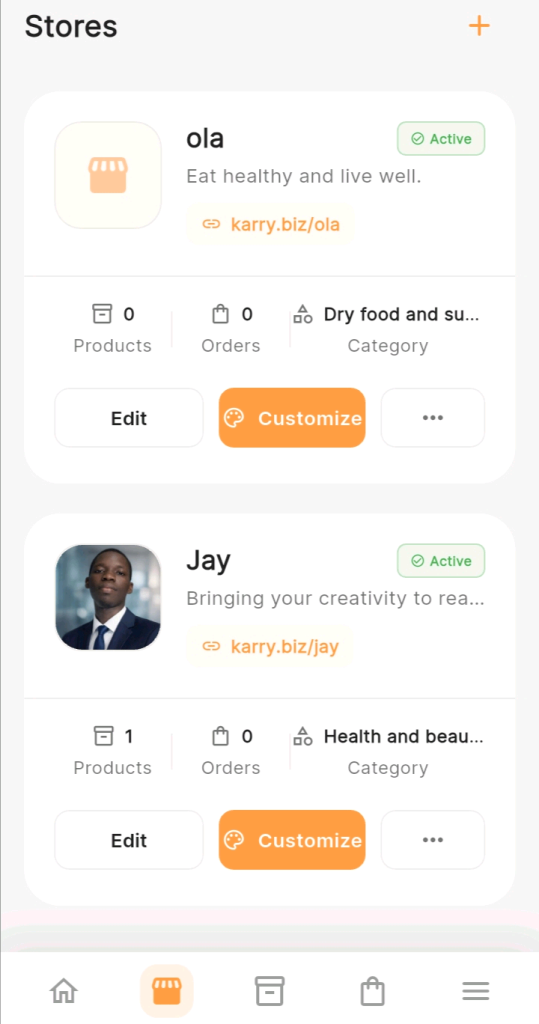
Your store category is the broad classification that describes what type of products your store sells. It is to be selected when you create or edit your store — and it appears on your store profile card on the Stores page alongside your store name, tagline, product count, and order count.
Why Your Store Category Matters
Before we get into the steps, here is why this is worth thinking about carefully rather than just clicking the nearest option.
• It Helps The Right Customers Find You:
KarryBiz uses store categories to organize and surface stores to relevant buyers. A store correctly categorized as “Health and beauty” is more likely to appear in front of someone looking for beauty products than one incorrectly listed under “Electronics and gadgets.”
• It Sets Customer Expectations Immediately:
When a customer sees your store category whether on the platform or shared via link, it tells them what to expect before they even visit. The right category attracts the right buyers. The wrong one attracts people who will leave immediately when they realize you don’t sell what they expected.
• It Reflects Professionalism:
A store whose category accurately matches its actual products looks organized and thoughtful. A store selling skincare products categorized under “Machinery” tells a different and less flattering story.
• It Informs Your Store Bio and Tagline:
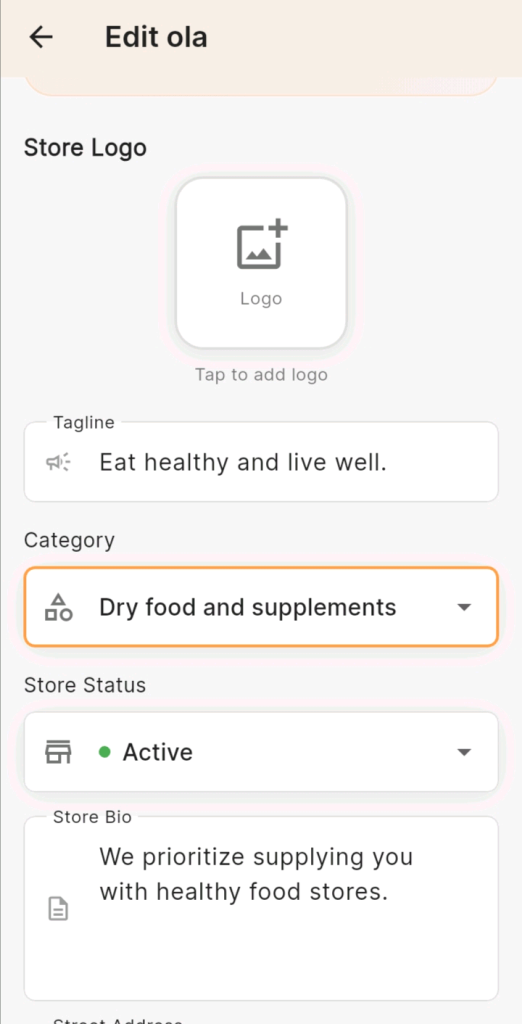
Your category, tagline, and store bio should all tell the same story. When they are aligned — like “Dry food and supplements” with the tagline “Eat healthy and live well” and a bio about healthy food — everything feels coherent and trustworthy.
Step-by-Step: How To Set or Update Your Store Category on KarryBiz
Step 1: Log In To Your KarryBiz Account
Open the KarryBiz app on your smartphone and log in using your registered email and password.
Once you are in, you will land on your home dashboard.
Step 2: Navigate to Your Stores Page
From the bottom navigation bar, tap “Stores.”
This opens the Stores page — where all your created stores are displayed as cards.
Each store card shows your store name, tagline, store link, product count, order count, current category, and status. You will also see three action buttons at the bottom of each card:
• Edit: Opens the store editing section.
• Customize: Opens visual customization options (colors, design).
• (3 horizontal dots •••): to add additional services like custom domain, enable shipping etc.
Step 3: Tap “Edit” on the Store You Want to Update
Find the store whose category you want to set or change, and tap the “Edit” button.
This opens the Edit Store page — which shows all the editable fields for that store.
Step 4: Tap the Category Dropdown
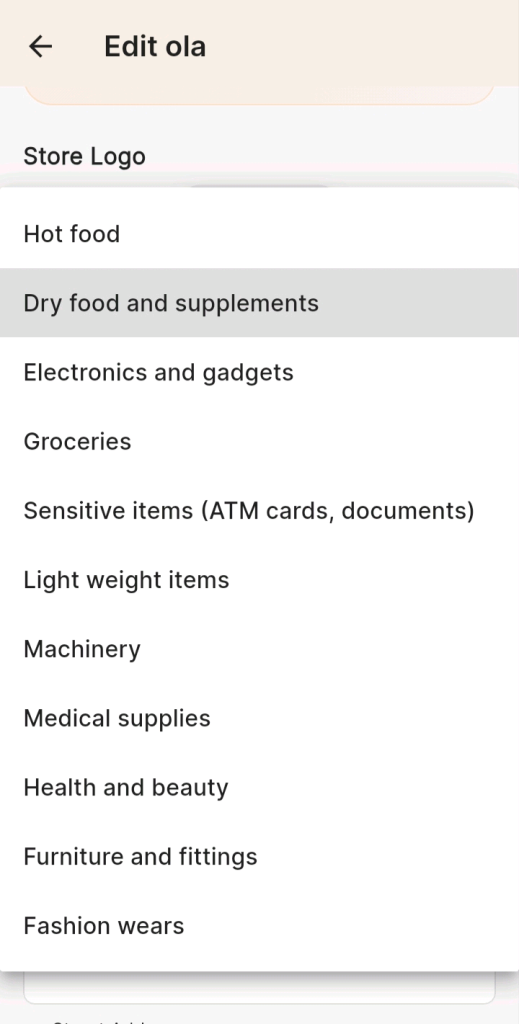
On the Edit Store page, scroll down to the “Category” section.You will see a dropdown field currently showing your store’s existing category.
Step 5: Review the Full Category List and Select the Right One
The category list will open, displaying all available options. Carefully go through it and pick the right option for you.
Step 6: Confirm Your Selection
After tapping your chosen category, the dropdown closes and the field updates to show your new selection — confirmed with the orange border indicating it is been changed.
Step 7: Review Your Other Store Details for Consistency
While you are in the Edit Store page, take a moment to check that your other details align with your chosen category.
Step 8: Save Your Changes And Preview
Once you are satisfied with your category selection and have checked that your other details are aligned, scroll down and tap the “update store” button to apply all your changes.
Final Thoughts
Your store category is one of those small details that carries more weight than it appears to.
It is the first signal KarryBiz uses to understand your store. It is the context customers get before they visit. And it is the thread that ties your tagline, your bio, and your product range together into a coherent, trustworthy identity.
Getting it right takes about two minutes. Leaving it wrong or leaving it as whatever you clicked in a hurry when you first set up — quietly works against you every day.
Open the KarryBiz app. Go to your Stores page. Tap Edit. Check your category to make sure it fits. Then make sure your tagline and bio say the same thing your category says.