How To Generate Invoice For Your Customer on KarryBiz


A lot of small business owners in Nigeria skip preparing the invoice step entirely. They collect payment via bank transfer, send a WhatsApp message as confirmation, and move on. No proper record. No documentation. No paper trail.
That looks to work pretty fine until it doesn’t, and left you confuse.
Until a customer claims they never received their order. Until you can’t remember how much someone paid three months ago. Until you are trying to calculate your revenue at the end of the month and you are staring at a jumble of bank alerts and chat screenshots trying to piece together what happened. An invoice changes all of that.
An invoice is an official payment request or confirmation document that records exactly what was sold, how much it cost, and who paid for it. It is the backbone of professional business record-keeping. It protects you legally, keeps your finances organized, and — perhaps most importantly — it tells your customers that they are dealing with a real, serious business.
KarryBiz makes generating invoices incredibly simple. You don’t need an accountant. You don’t need a separate invoicing app. Everything you need is built right into the platform.
In this guide, we will walk you through exactly how to generate a professional invoice for your customer on KarryBiz — step by step — along with everything you need to know to use invoices effectively in your business.
What Is an Invoice and Why Does Your Business Need One?
Before we get into the steps, let us make sure we are clear on what an invoice actually is and why it matters.
An invoice is a formal document issued by a seller to a buyer that details:
• The products or services sold.
• The quantity of each item.
• The price per item.
• The total amount owed or paid.
• Payment terms and due dates.
• The contact details of both parties.
Think of it as the official receipt of your business transaction — more detailed and more professional than a bank alert or a WhatsApp message.

Here is Why Every KarryBiz Seller Needs to Use Invoices:
• It gets you paid faster: Customers who receive a formal invoice with a clear amount and payment deadline are more likely to pay promptly than those who receive an informal message.
• It keeps your finances organized: Every invoice you generate becomes a financial record. At the end of the month or year, you can look back at all your invoices and know exactly how much revenue your business generated.
• It protects you in disputes: If a customer ever claims they didn’t order something or disputes a payment, your invoice is your proof. It documents exactly what was agreed — no ambiguity, no arguments.
• It makes you look professional: Receiving a clean, branded invoice from an online store signals to customers that they are dealing with a legitimate business — not a side hustle.
• It simplifies tax and accounting: If your business ever grows to the point of formal tax registration, your invoices become essential financial documents.
• It builds trust and confidence: Customers feel more secure completing transactions when they know they will receive proper documentation.
5 Types of Invoice Statuses on KarryBiz (And What Each One Means)
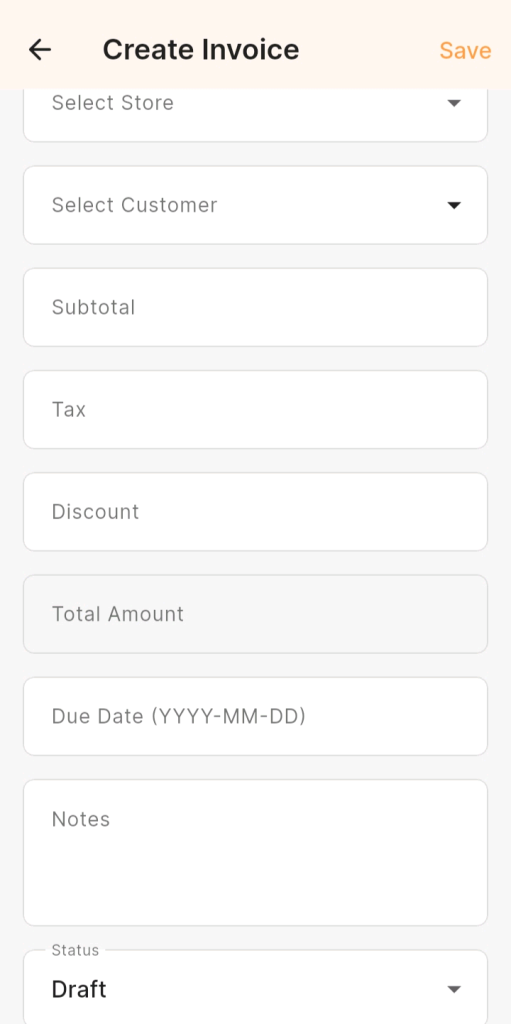
When you create an invoice on KarryBiz, one of the most important fields you will encounter is the Status dropdown at the bottom of the Create Invoice form. This status system keeps every transaction organized and tells you exactly where each invoice stands in the payment process. Here are the five invoice statuses you will find on KarryBiz:
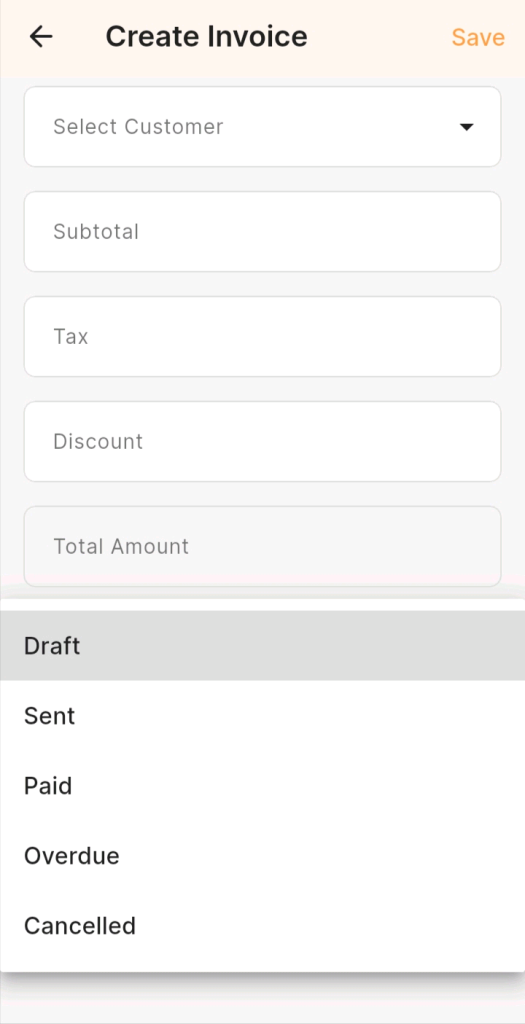
• Draft:
This is the default status when you first create an invoice. A Draft invoice has been created but not yet sent to the customer. Use this status when you are still working out the details, waiting for order confirmation, or preparing the invoice for review before sending.
• Sent:
Once you have shared the invoice with your customer via WhatsApp, email, or a direct link — update the status to Sent. This signals that the payment request is officially in the customer’s hands and action is expected.
• Paid:
The status every seller loves to see. A Paid invoice confirms that the customer has settled the full amount. Always update your invoice to Paid immediately after confirming receipt of payment to keep your financial records accurate.
• Overdue:
An Overdue invoice is one where the payment due date has passed without settlement. KarryBiz flags these so you know exactly which customers need a follow-up — helping you chase payments before they are forgotten.
• Cancelled:
A Cancelled invoice marks a transaction that has been voided entirely — whether because the order fell through, the customer backed out, or the invoice was created by mistake. It keeps your records clean without permanently deleting the transaction history.
Step-by-Step: How to Generate an Invoice on KarryBiz
Step 1: Log In to Your KarryBiz Account
• Open the KarryBiz app on your smartphone or visit karrybiz.com on your browser.
• Enter your login credentials and tap “Sign In” to access your dashboard.
Step 2: Navigate to the Invoices Section
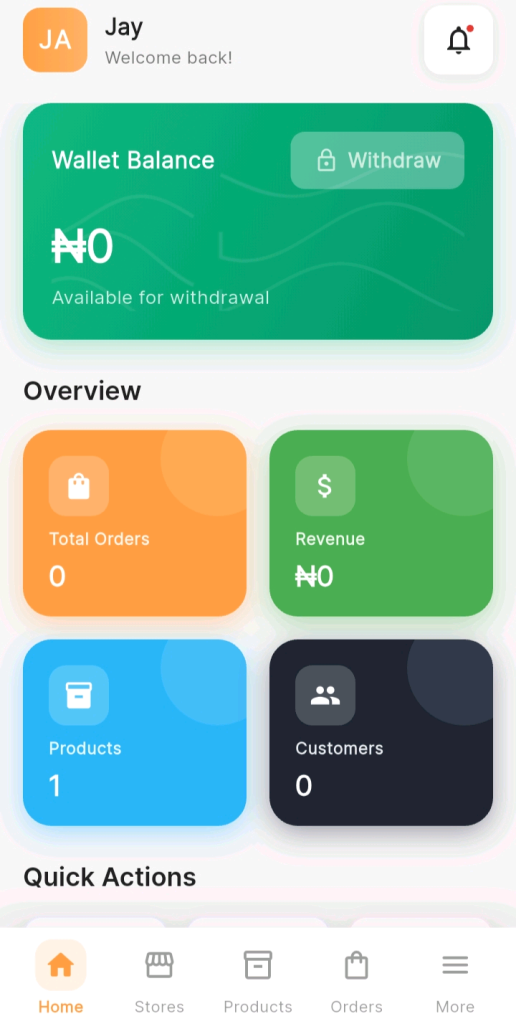
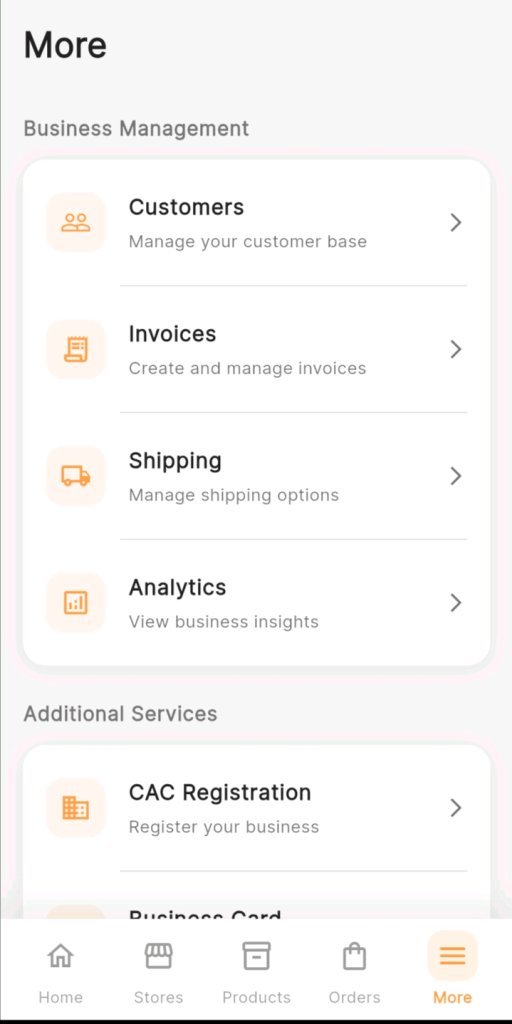
• From the bottom navigation bar, tap “More.”
• This opens the extended menu where additional features are housed.
• Under the “Business Management” section, you will see:Customers, Invoices, Shipping and Analytics.
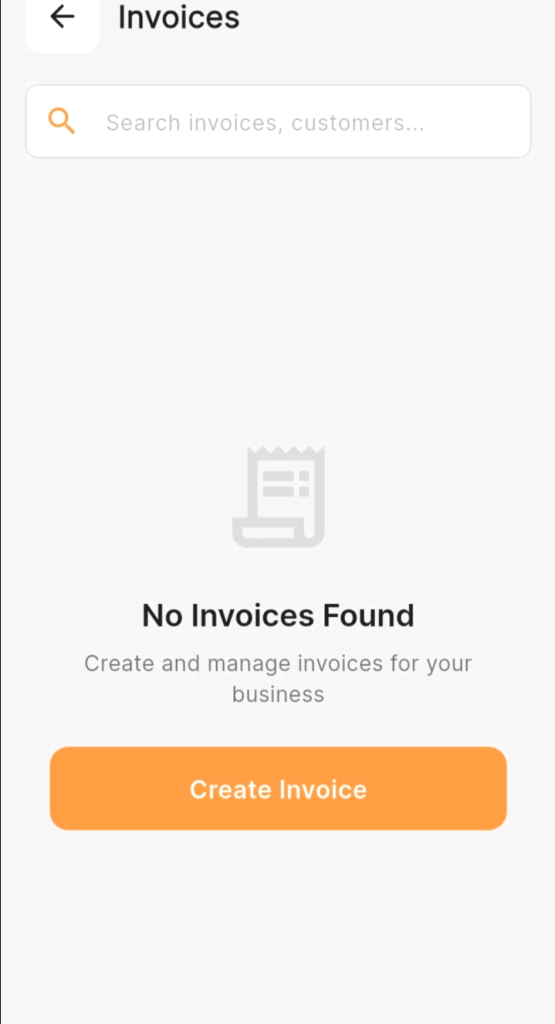
• Tap “Invoices” to open the invoice management page.
What you will see: Your invoice dashboard displays all invoices you have previously created — paid, unpaid, and pending. If this is your first invoice, the page will be empty and ready for you to create your first one.
Step 3: Create a New Invoice
On the Invoices page, look for and tap: “Create Invoice” or a plus (+) icon in the corner of the screen.This opens the invoice creation form where you will fill in all the details of the transaction.
Step 4: Select Store
This allows you to select the specific store you want to work on.
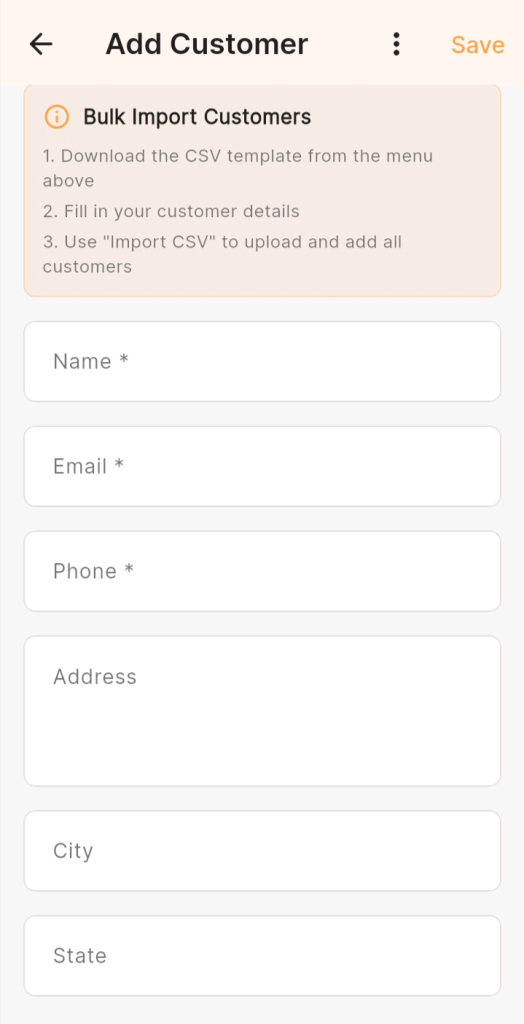
Step 5: Add Your Customer’s Details
The first section of the invoice form asks for your customer’s information.
Fill in:
• Customer Name — Full name of the individual or business you are invoicing.
• Email Address — Where the invoice will be sent digitally.
• Phone Number — For WhatsApp or SMS delivery of the invoice.
• Billing Address — Customer’s address (optional but professional).
Note: Returning customer? If you have previously imported or added this customer to your KarryBiz customer list, you may be able to select them directly from your contacts rather than typing their details again. This saves time and ensures accuracy. If not added, you can do that manually in the “customer” section in “business management”.
Step 6: Set the Invoice Date and Due Date
Every professional invoice needs two key dates:
• Invoice Date — The date the invoice is being created and issued (usually today’s date).
• Due Date — The deadline by which payment should be made.
Step 7: Add the Products or Services Being Invoiced.
This is the core of your invoice — the itemized list of exactly what you are charging for.
For each item, enter:
• Item Name — The product or service being sold.
• Description — A brief description of the item (optional but helpful).
• Quantity — How many units are being sold.
• Unit Price — The price per single unit.
• Total — KarryBiz will automatically calculate this (Quantity × Unit Price).
Step 8: Apply Discounts (if Applicable)
If you are offering your customer a discount — for bulk orders, loyalty, or a special promotion — add it in the discount section.
Step 9: Add Tax (if Applicable)
If your business is registered and required to charge VAT or any other tax, add it in the tax section.
Step 10: Add a Note or Payment Instructions
The notes section is your opportunity to include any additional information relevant to the transaction.
Step 11: Review Your Invoice
Carefully go through each items to avoid any errors before sending your invoice.
Step 12: Save and Send the Invoice
• Once you are satisfied with every detail, it is time to send.
• Tap “Save” or “Generate Invoice” to finalize the document.
KarryBiz will create a professional, formatted invoice that you can then:
• Send via Email: Delivered directly to your customer’s inbox.
• Share via WhatsApp: Send the invoice as a PDF or link through WhatsApp.
• Download as PDF: Save to your device for manual sharing or printing.
• Copy the Invoice Link: Share a direct link that customers can open in their browser.
Step 13: Track the Payment Status
After sending your invoice, KarryBiz allows you to track its payment status right from your invoice dashboard.
Conclusion
Generating invoices might feel like an extra step when you are just trying to move products and make sales. But every successful business, no matter how small runs on documentation.
An invoice is more than a payment request. It is proof of your professionalism. It is protection for your business. It is the paper trail that separates businesses that scale from businesses that stay stuck.
KarryBiz has made the process as simple and fast as possible — so there is no reason to skip it.Start invoicing every customer, every order, every time. Watch how it transforms the way customers perceive your business — and how it transforms the way you understand your own finances.
Your business deserves to be taken seriously. Start with the invoice.